Company Accounts
Company accounts are used to organize projects. Unlimited company accounts can be created. For each company account created individual projects can be created and managed. When another user is invited to a project, they will see the company account and only each project they are invited to within that company account.
Company accounts have administrators, members and visitors as follows:
- Administrators - shown by a green check mark on the company account. Administrators can manage company accounts, add users and change privileges
- Members - shown in Manage company accounts, Members can create new projects in a company account and move projects out of company accounts.
- Visitors - can be invited to projects in a company account, but cannot create new projects in a company account or move a project out of a company account.
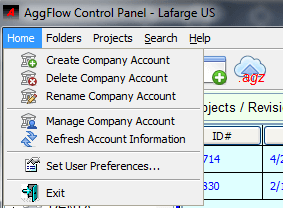
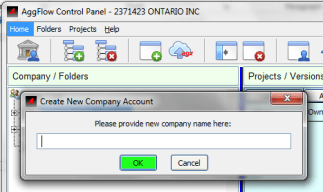
Create Company Account
Used to create new company accounts to organize projects. Enter the name of the new company account and it will be added to the company list.
Delete Company Account
Select a company to delete, then the company account and its folders and projects will be deleted.
Rename Company Account
Select a company to rename, and rename the company account. (must be administrator)
Manage Company Account
Open panel to manage users for the account (must be administrator)
Refresh Account Information
Ensure account information including privileges is current for access to company accounts and projects
Right Clicking on a company account will allow folders to be created and the company account to be renamed.
Manage Company Account
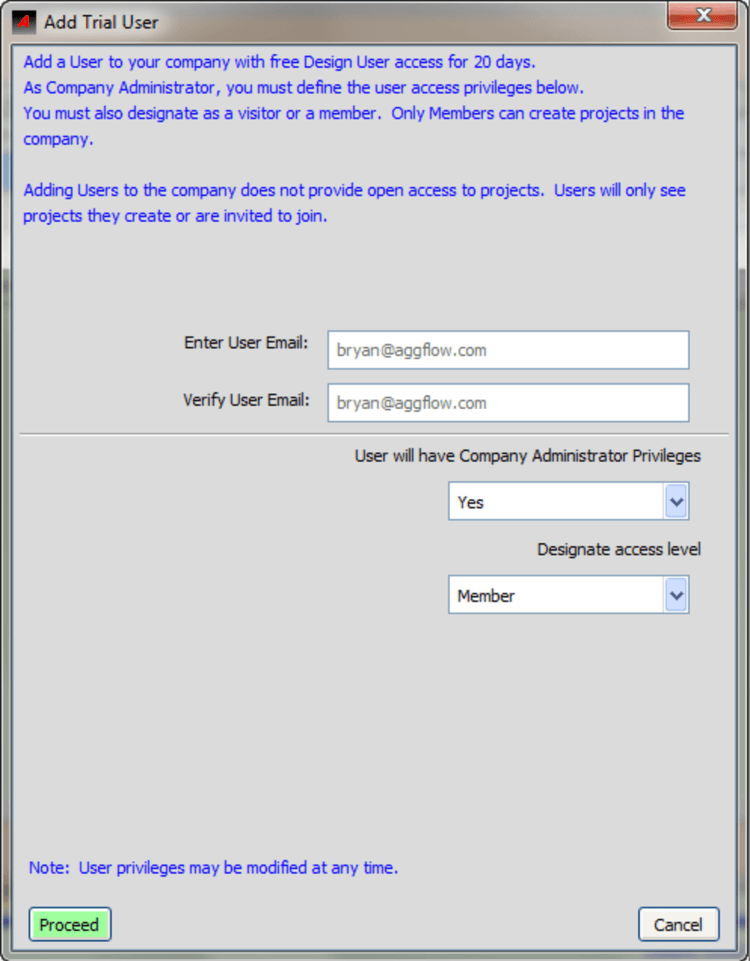
Company Account Administrators can manage user access for each company account by selecting Manage Company Account from the drop down menu under Home, or from the quick icon. Multiple Administrators are allowed. Giving company account access to a user can allow another user to create, manage or approve projects in the same company account, and to share projects from this account.
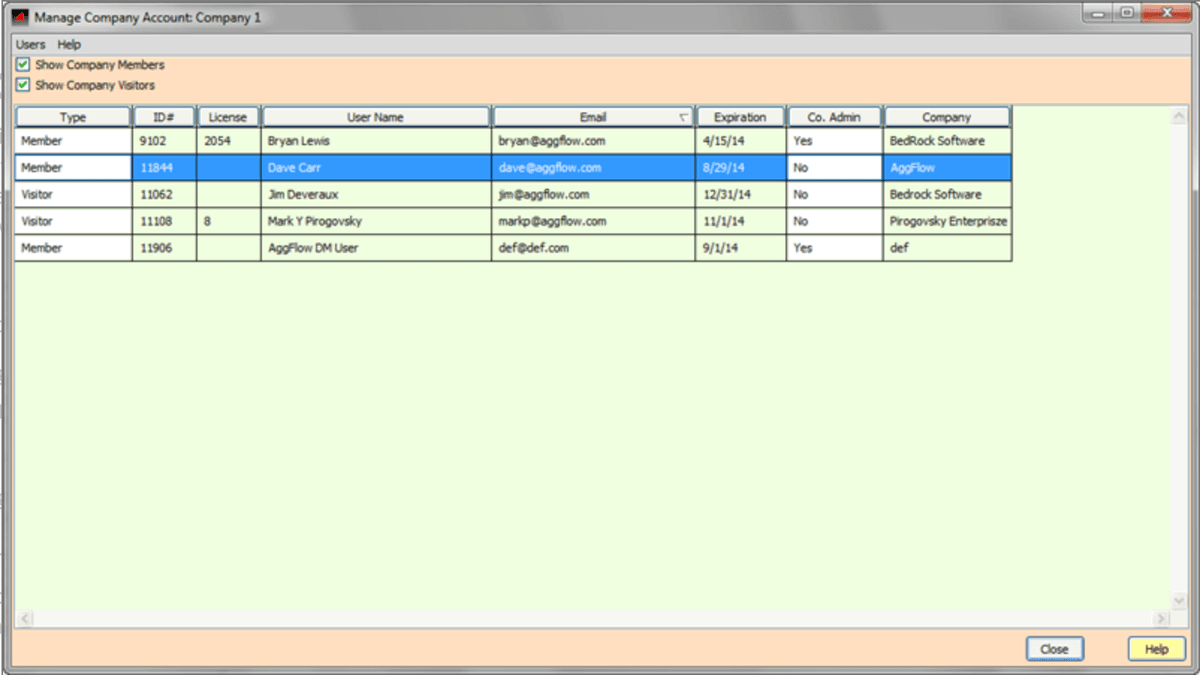
Giving access to a company account does not allow access to the projects in the account. No user can see another users project unless invited to a project by the project owner.
- Select Manage Company account to Add New Company User
- Select User to modify user privileges or delete user from account
- To edit user privileges, click directly in the white fields or use the modify user privileges button
Administrators can manage the company account and make changes including renaming or deleting the company account, Showing all projects within the company even if they are not shared with the owner (to ensure there are no projects in the account that could be affected if there are changes made), and manage the account to add or delete users and set privileges.
Users in the company account can be a member or a visitor. Only Members to a company can create projects in the account, or move projects out of the company to another company. Visitors cannot create projects in a company account or move projects out of a company account to another company.
When adding a new AggFlow DM user, instructions for downloading and using the program can be sent directly to a new user from the Manage Company Account window.
Folders
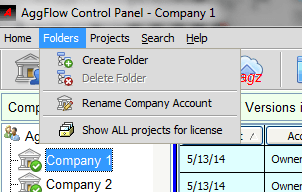
Folders are managed by selecting Folders from the menu or right clicking in the company / folder section of the control panel on a company. Folders can be added to any company account and are specific to each user.
Folders can be managed by selecting a folder and right clicking in the Company Folder section of the control panel, or by using the quick buttons to add or delete folders. Multiple folders can be created within each company or as subfolders.
Show ALL projects for license allows a company administrator to see any project created in that company, including projects with no access rights.
Privileges
The administrator of a project can set these user privileges under Manage Company Account in the users menu.
Company Administrator Privileges
Allows administrator to grant administrator privileges to another user.
Access Level
Members have the ability to create new projects in a company account, Visitors can have access to existing projects.
Install and Print Company Logo
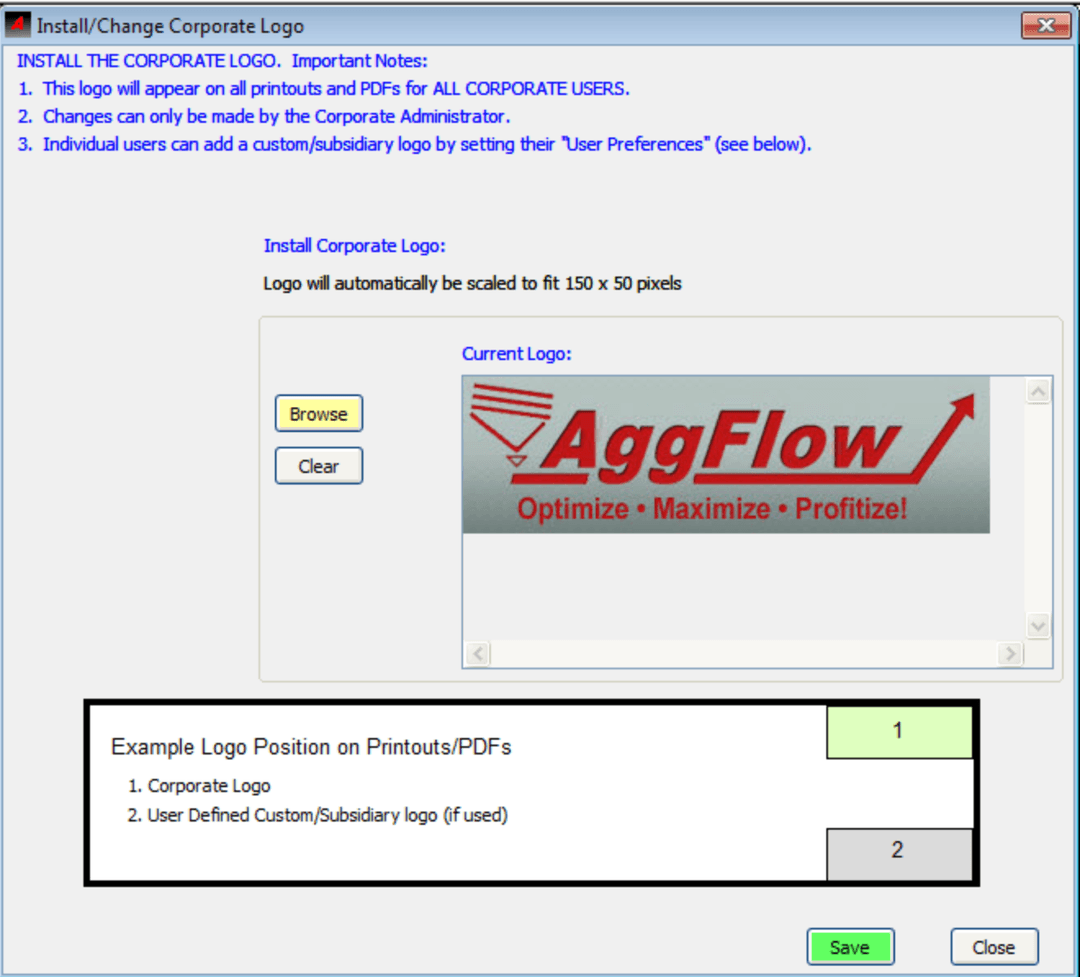
Company logos can be added for a company from the manage company account window. Company logos will appear on printouts of “Approved” revisions or "Master" revisions when they are open in Read Only. Opening the project in Edit starts a new revision of the project without approved or master status and the Company Logo will not show when the worksheet is printed.
To add or change a company logo, you need to be a company Administrator, which is shown by a green check mark on the company.
From the control panel select "Home", "Manage Company Account". Then under "Company", select Install/Change company logo.
Each company can have it's own logo.
Use the Browse button to select a company logo, note the logo file size is restricted. Select Save to attach the logo.
The company logo will then show on any printed worksheet that is opened as an "Approved" or "Master" revision in "Read Only".
Refresh Account Information
Ensures that changes made as a user or by another user are current for the companies and projects in AggFlow DM. When you add or change a user, refresh the account information so that the changes are effective for the user.