Projects, Revisions, and Users
The Control panel provides all access to projects in each company and folder.
It uses menu drop downs, quick buttons and selection of projects and revisions to create and manage projects, project versions, and project users.
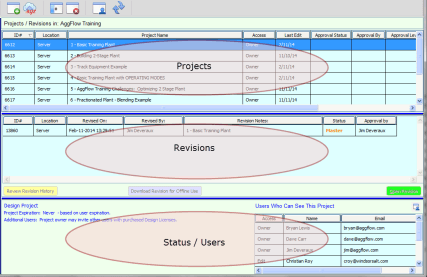
Columns can be rearranged by clicking and holding on the column heading and moving the column to the right or left.
Projects
When a project is created and saved, it is saved as the most recent revision of the project. Up to 5 revisions of the project will be available that are not revisions saved as Master, pending, or approved revisions.
When a project is saved as a revision and there are 5 earlier revisions, the oldest revision will be deleted. It is important that work that needs to be saved for future reference should be saved as a Master revision or as a new project.
For Design projects, unlimited Master revisions and approval revisions can also be created, and these are shown in the revision panel.
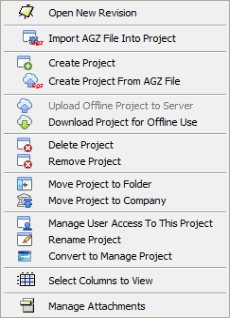
Projects can be created as new projects, from existing AGZ files, or from an open revision of a project.
Revisions can also be created by importing an AGZ file into an existing project.
Access to projects is managed by project owners. The user creating the project is the project owner. As the owner the user can invite other users to own, edit, read only or remove access to a project. Other users will only see projects they are invited to.
The project status is also displayed for each project on the control panel.
The menu for projects can be accessed from the menu bar under projects or by right clicking in the project area of the control panel. Projects can be created, moved to companies or folders, or deleted. Projects can also be changed from a Design project to a Manage project. A license will be required for each manage project.
Create New Project
Creates a new project within the company or project that is selected. From this a new revision from blank worksheet can be started, or an AGZ file can be imported into the created project. This feature is also located as a quick link on the task bar.
Open New Revision
New revisions can be created in an existing project. Clicking the icon will open a blank worksheet that can be edited and saved as a new project revision.
Create Project from AGZ file
Existing AGZ files from previous revisions of AggFlow can be imported into AggFlowDM as a new project. Clicking the icon will allow the user to browse for the AGZ file to import as a new project and this can be edited and saved as a revision in a new project.
Import AGZ File into Project
Existing AGZ files can be imported into an existing project. Clicking the icon will allow the user to browse for the AGZ file and open the file in a worksheet in an existing project. This can be edited and saved as a new revision in an existing project.
Convert to Manage Project
Used to change a Design project to a Manage project. A Manage project must be licensed in order to access and use the project.
Manage Attachments
Used to add or review attachments to a project. Multiple attachments can be added to a project
Revisions
Project revisions can be converted into Master revisions or can be changed to revisions under or having received approval from a senior user.
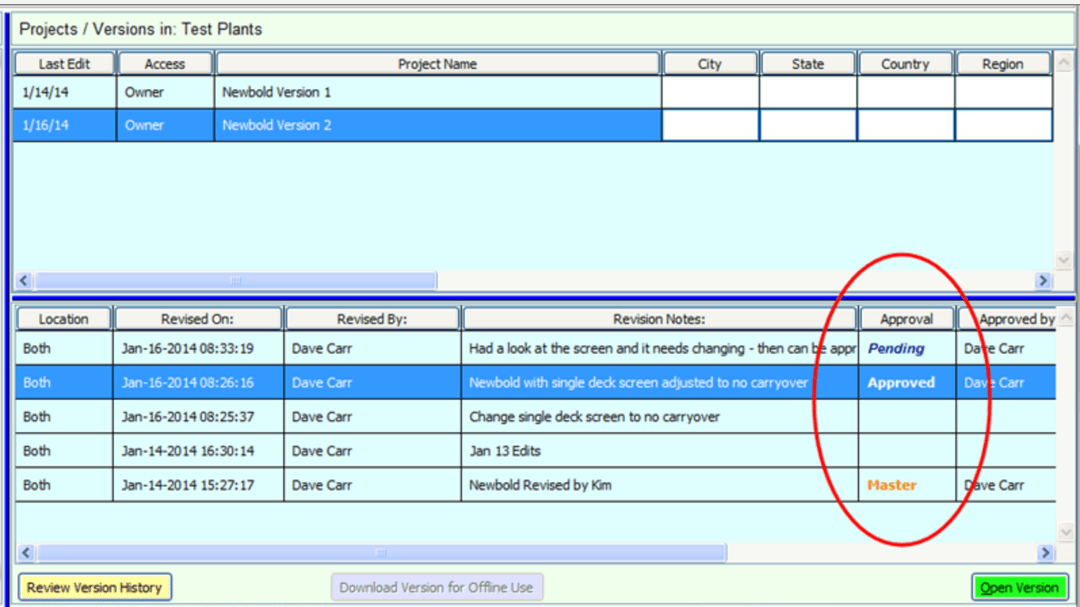
Make Master
Project revisions can be saved as a master revision by right clicking in the revision area of the control panel or within the project worksheet when working on the project. Master revisions are used in Design and Manage projects and are protected from editing. Master revisions can be opened and edited but only saved as a new revision.
Design projects are allowed multiple Masters. Manage projects are allowed only one Master, and by making a new master, the previous master will be replaced.
Manage Company accounts is used to set user privileges by administrators for users on all projects in a company.. Manage User is used for setting access privileges in each project by project owners.
Open Project Revisions
Project revisions are opened from the control panel. Projects are in each company or company folder and are listed when the company or folder is selected. When a specific project is selected, the revisions available for that project are shown on the control panel. Any project revision can be opened and user access will depend on the privileges granted by the owner of the project.
When a project revision is opened, a project worksheet will open with the project displayed for use in the worksheet.
Multiple project revisions can be opened at the same time.
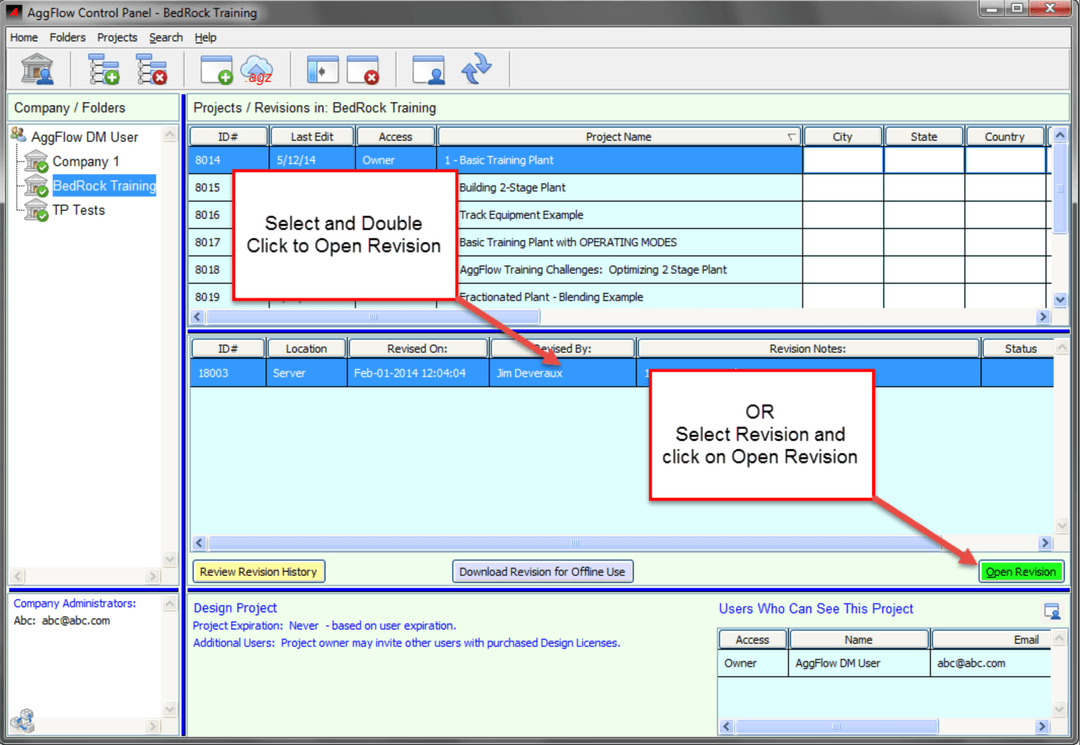
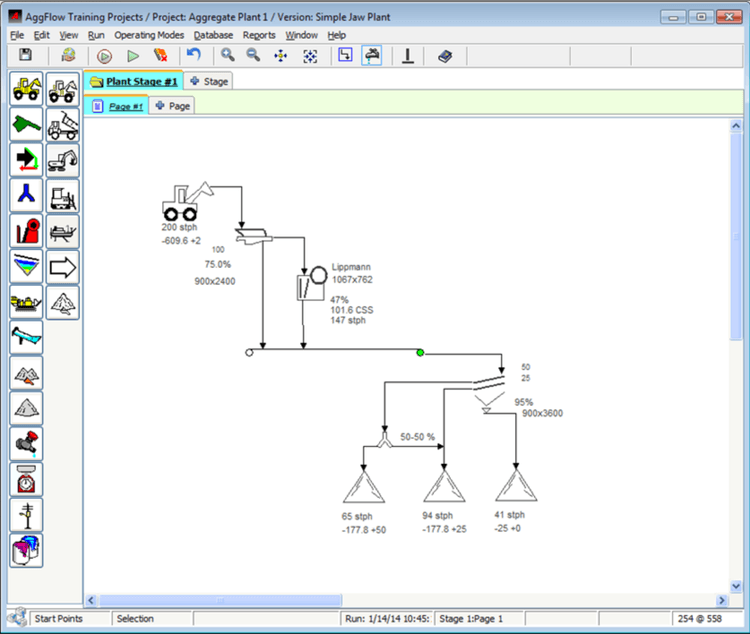
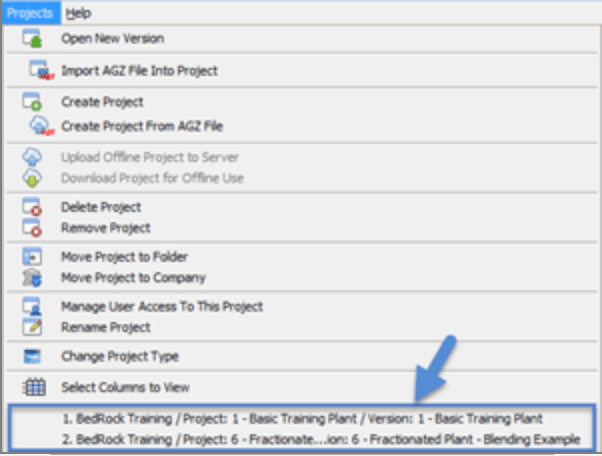
Revisions that are open are listed and can be accessed by opening the project tab from the menu and selecting the open revision from the lower part of the tab
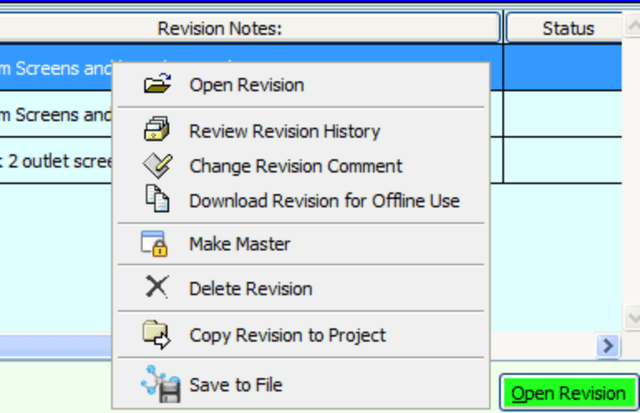
Revisions can be managed by right clicking on the highlighted revision to change the revision comment, create a master revision, delete the revision, or copy it to a different project. The revision history can also be reviewed to determine the events leading to the revision being reviewed. Revisions can also be saved as a file outside of the DM program and sent as attachments or shared for loading into DM with other users (see working with files).
Users
Each Project can have multiple users and user access is controlled by the project owner(s). When a project is created the user creating the project becomes the project owner. As the owner additional users can be invited to the project with Manage User.
The types of Users will be shown as follows:
- Design - Is a licensed user that can create and edit design projects.
- Reader - User is not licensed, read only for design projects, and access to manage projects as set by project owner,can also be the owner of a manage project.
User privileges are set as each user is added to the project. When a user is added they will have Read only privileges. To modify the access, click on the white area of the Access column and using the drop down, select the access as Owner, Edit, Read Only or None.
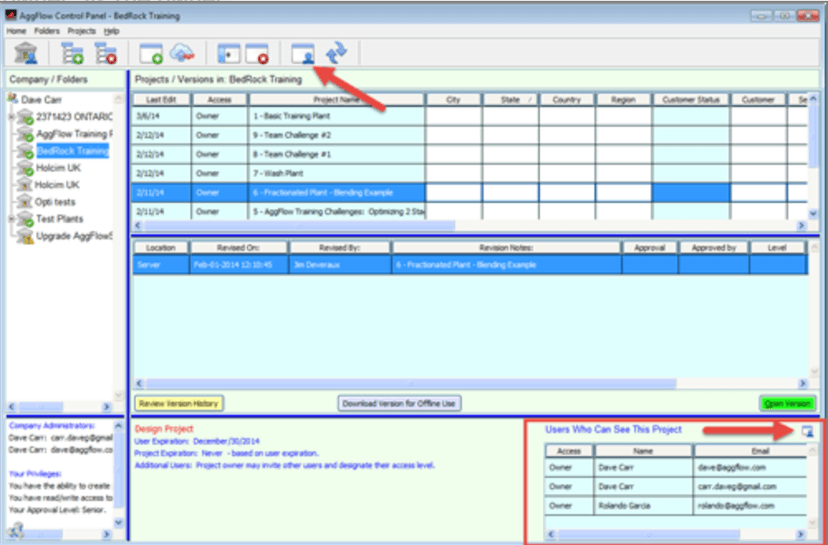
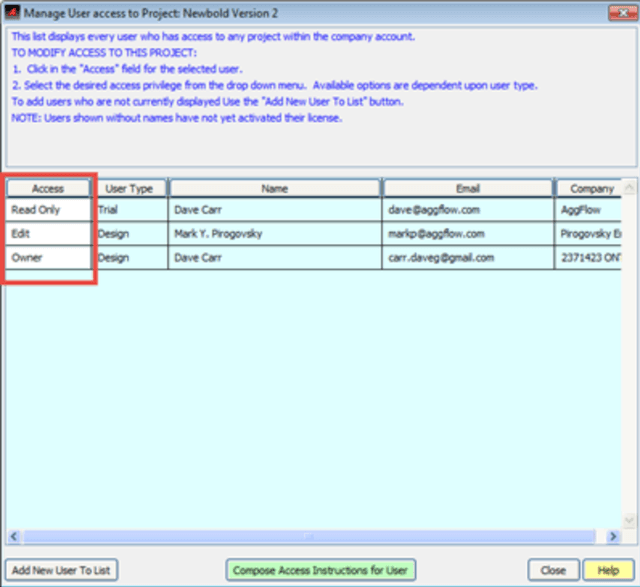
A user can be deleted from a project or set with no access privileges. An owner can keep a user on the user list but prevent the user from seeing the project by setting the access privileges to “None”.
The user access level can be changed a project owner at any time.
Refresh Account information when user privileges are changed so the changes take effect for users.