Operating Modes
Use Operating Modes to save and name adjustments to equipment in the simulation. Then switch instantly between saved operating modes to compare changes and configurations. There is no limit to the number of operating modes that can be saved.
Important Notes about Operating Modes
- Create and save unlimited Operating Modes.
- Typical changes to plant settings saved as operating modes include: Change of Flow Stream from one machine to another; Different Feed Gradations; Crusher Settings; Screen Mesh Sizes; Splitter and Flop Gate settings; Sample Bucket Data; Spray Bars On/Off.
- Operating Modes work with specific plant arrangements. Substituting equipment will invalidate previously established modes. Two examples are:
- Substituting a principal piece of equipment like a crusher or screen type, or changing a make, or model.
- Adding new equipment to the plant.
- To correct invalidated modes re-run all modes or cancel the change.
Operating Modes are used to change settings or flow lines with the simulation. Equipment items cannot be added or removed without affecting all modes.
Results for Inventory (temporary storage) Items or stockpiles can be viewed for all modes by selecting the items, and right click to review results for all modes. Note that the downstream linked Inventory Item will create a feed gradation that is the weighted average of all gradations and rates of the linked upstream inventory item.
Install and Use Operating Modes
- Establish the plant setup and save it.
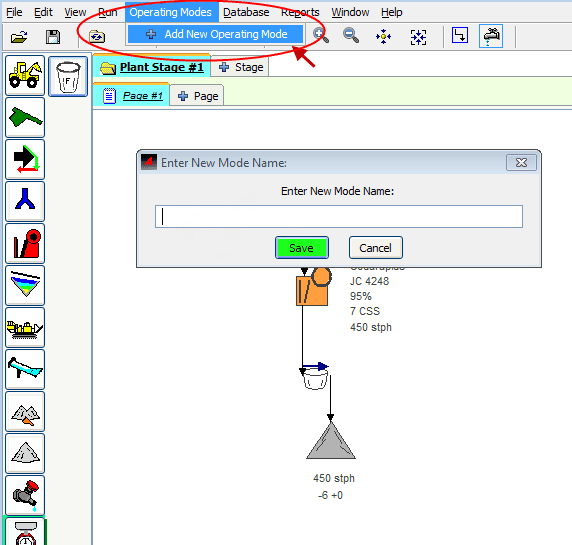
- Select the menu item
Operating Modesand choose+ Add New Operating Mode. - Enter a Mode Name and save it.
- The plant will “Run” to execute calculations.
- The
Operating Modesmenu is now active and will expand to provide different options as more modes are saved. - Add a New Operating Mode and name it to reflect a change to the plant setup.
- Make changes to the plant setup using Adjust Setup for equipment or by changing flow streams. Equipment that has been changed will turn orange until the change has been saved in the operating mode.
- Save changes and run the operating mode to compare modes.
- Use the
Operating Modesmenu to select various options to manage and compare operating modes.
Operating Modes Options
Manage Operating Modes
Opens the Operating Mode Window to rename, add, delete, Edit or switch operating modes.
Modes Report
Creates a report that summarizes rate of material going to each stock pile in each mode.
Mode Differences Report
Creates a report that summarizes all equipment settings in the different modes for comparison.
Delete all Operating Modes
Deletes all operating modes from the plant simulation.
Re-run All Operating Modes
Updates all operating modes to current settings including data results in the Modes and Modes Differences Report.
