Offline Use
Only design users will be able to work on projects offline. Manage users are only able to access projects online. In order to use AggFlow DM offline, a USB key must be attached to the computer. The USB key is programmed with the license information so that a valid design user can work remotely from the internet.
Manage Key for Offline Use
If DM is installed when a licensed key is attached to the computer, there will be a prompt to convert the key for use with AggFlow DM.
Any time the key is in the computer when Aggflow DM is started, it will be reprogrammed for 21 days offline use. If the key was not installed when AggFlow DM was started, then before being able to work with project revisions offline, program the key by attaching the key to the computer, select Help from the main menu, click on My License, and select "Program Key for Offline Use". This will activate the key for 21 days from the time of first offline use. The key will need to be reactivated after 21 days by using the DM program when Online.
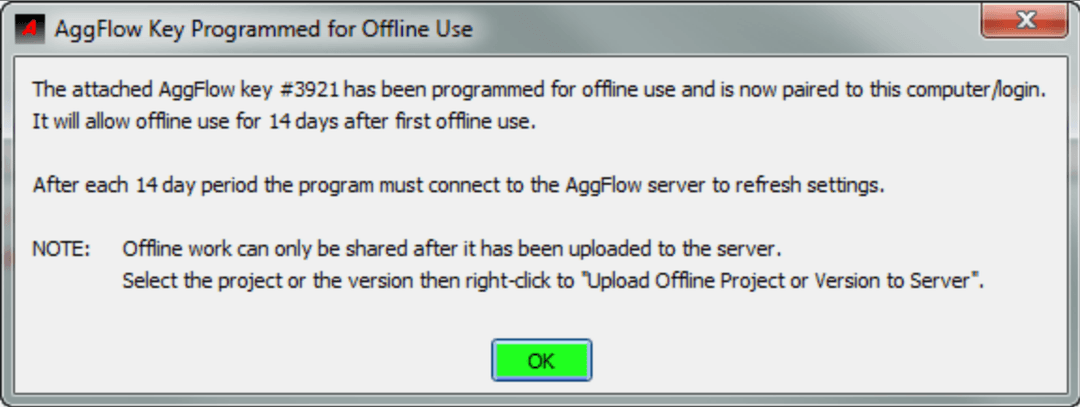
The key is reset by having it connected to the computer when AggFlow DM is started online, or by manually resetting the key using Manage Key for Offline Use in the Home Menu. The key can also be reset from the control panel under Help / My License and the prompt Program Key for Offline Use will show when the key has been detected and the license has completed an online check.
The USB key required for previous revisions of AggFlow can also be used for AggFlow DM. Closed
Download Revision for Offline Use
The location of each project revision is shown in the revision list under the location column as “Server”, “Both” or "Computer". For a project revision to be available for offline use, the location of the revision needs to be “Both” or "Computer".
To change the location from server to both, click on “Download revision for Offline Use.”
AggFlow DM will operate the same when being used offline. Any work created offline will show as “Computer” in the project revision location.
Upload Revision to Server
When returning to online work, project revisions will not automatically be added to the server. The project revision will remain as “Computer” on the computer it was created on. To add a project revision to the server, select the revision, right click and select upload to server. When the project revision is uploaded, the location will be shown as “Both” and the revision will be available to users for this project.
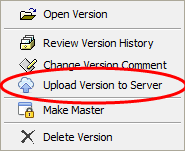
When a project is uploaded to the server, the oldest revision will be replaced if there are more than the allowed number of revisions on the server.
Restrictions to Working Offline
The DM control panel is designed to work online with the AggFlow Server to create and manage companies, and to manage project sharing directly with other users. If a user chooses or is required to work offline, the following features will not be available:
Program Updates
The program is regularly updated with equipment additions, improved setups and calculation methods, new equipment additions, announcements and new features. Each time the program is started and the user is online, the program will check for the latest updates and inform the user if updates are available for installation
Company Accounts and Folders
To create, manage, share and use company accounts requires being online. When offline, the user is only able to use the company accounts that were created or shared when last online.
Manage Attachments
Attachments stored with individual projects, such as equipment information or personal data, can only be stored and shared with projects using the Online server.
Manage Users
Project sharing directly using the DM control panel can only be used as an online feature.
Search Projects / Revisions
Is a feature that searches the DM server to locate projects or revisions by ID # or partial name.
Store Data to Personal Database
Any new data created for each revision will be available within the revision including gradations, screen sizes or equipment setups. To add the data to a personal database making the data available for all projects requires the user to be online as the data is stored to both the server and the program when it is created. Personal data added when online is available for use when working offline.
Import Multiple Projects
Dragging and dropping multiple projects into the DM control Panel is not available offline. Individual projects can be opened or dragged onto the control panel from a file.