Crushers
"blurb here"
Installing Crushers
Select a crusher from the AggFlow DM database or create a custom crusher using the Generic option.
Important Notes About Crusher Calculations
-
It is possible to create custom gradations specific to the material or crusher. When custom gradations are not in use the simulation will use manufacturer defined feed size and product gradations in calculations.
-
If material smaller than the Closed Side Setting (CSS) is input to a crusher AggFlow DM will calculate passing the material through the crusher without performing any crushing.
-
AggFlow DM default methodology assures that material passing through a crusher never becomes larger in the calculation, regardless of the feed size and settings.
-
Feed Assumptions to crushers are:
- Feed is well graded
- Capacity of Machine is known
- Machine is properly fed
- Wear parts and liners are in good condition
- Machine is operating properly
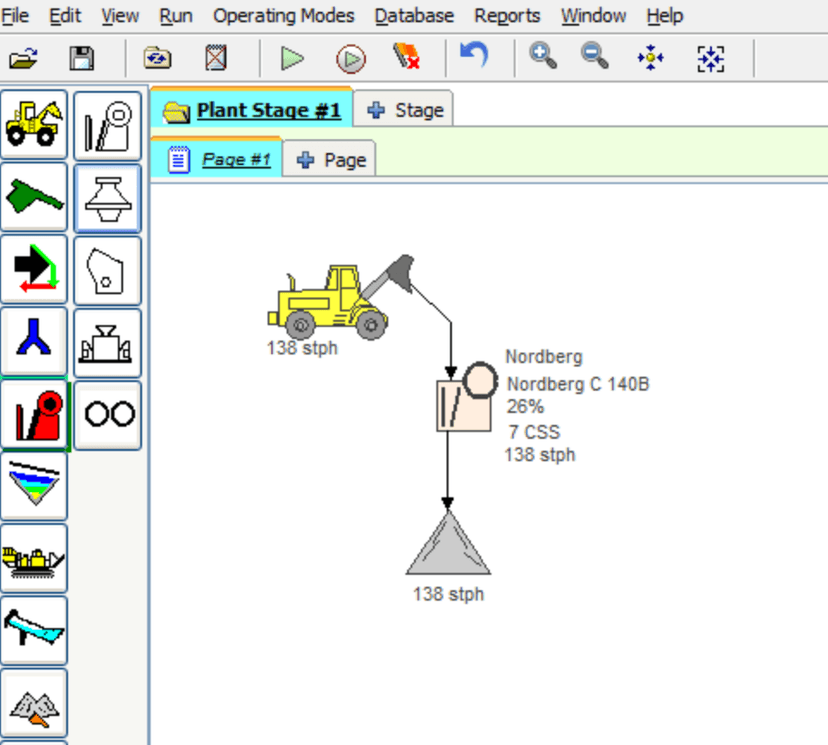
Discharge material from a crusher should be sampled to compare manufacturer discharge gradations to actual results at different settings. Sample buckets and modes can be used to show actual results at different settings.
To Install A Crusher
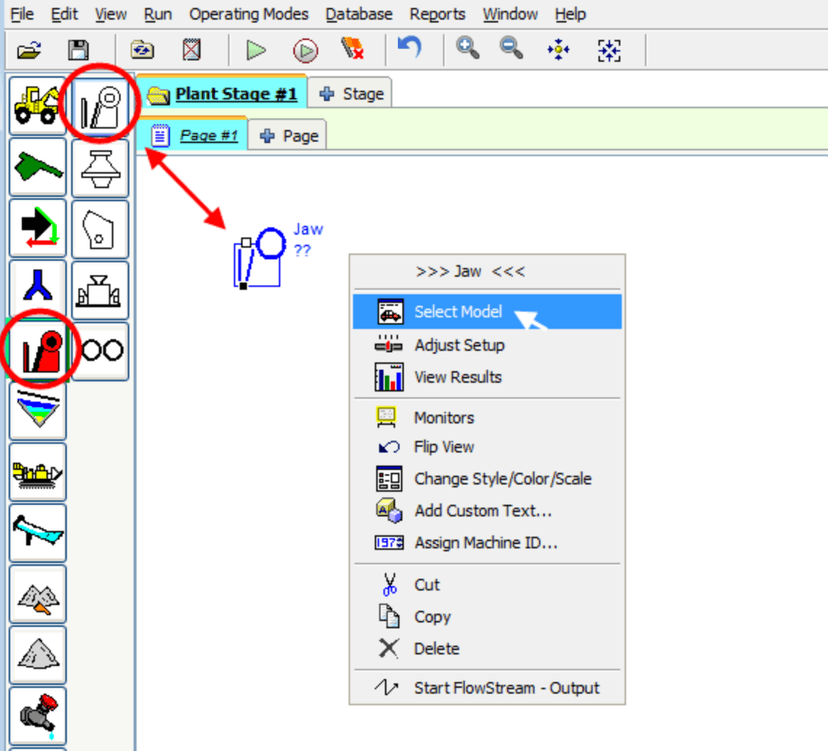
- Select the
Crushercategory. - Select a
Jaw,Cone,HSIorVSIcrusher and place it on the worksheet (it will turn blue). - Right-click the crusher and choose
Select Modelfrom the short-cut menu to open the Model Browser. - Select the desired manufacturer, make and model. Then
Install.
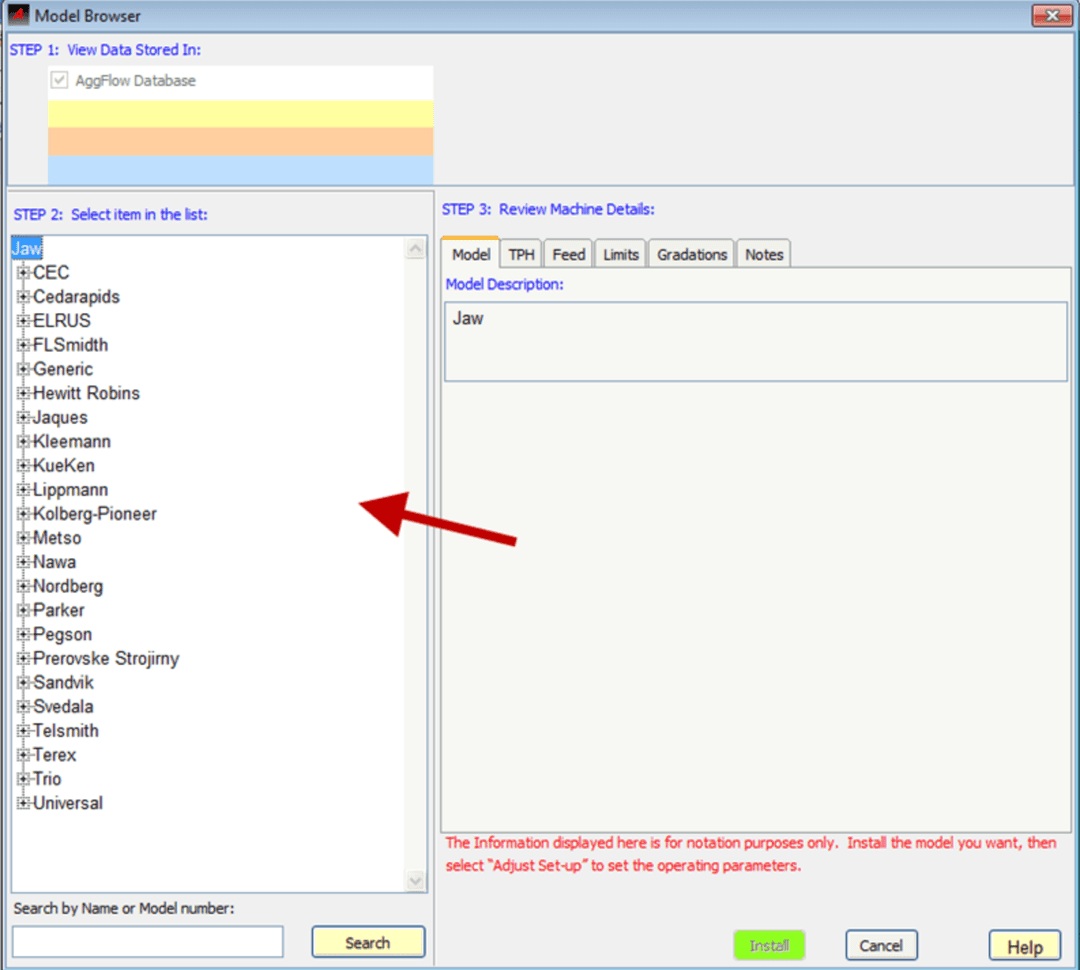
Model Browser
The Model Browser provides access to the entire AggFlow DM crusher database. Use the plus + and minus sign - to expand and collapse the list of machines.
If the Install button is not functional a crusher has not been selected. Expand the list and choose a specific make and model.
You can change the type of crusher from the model browser window.
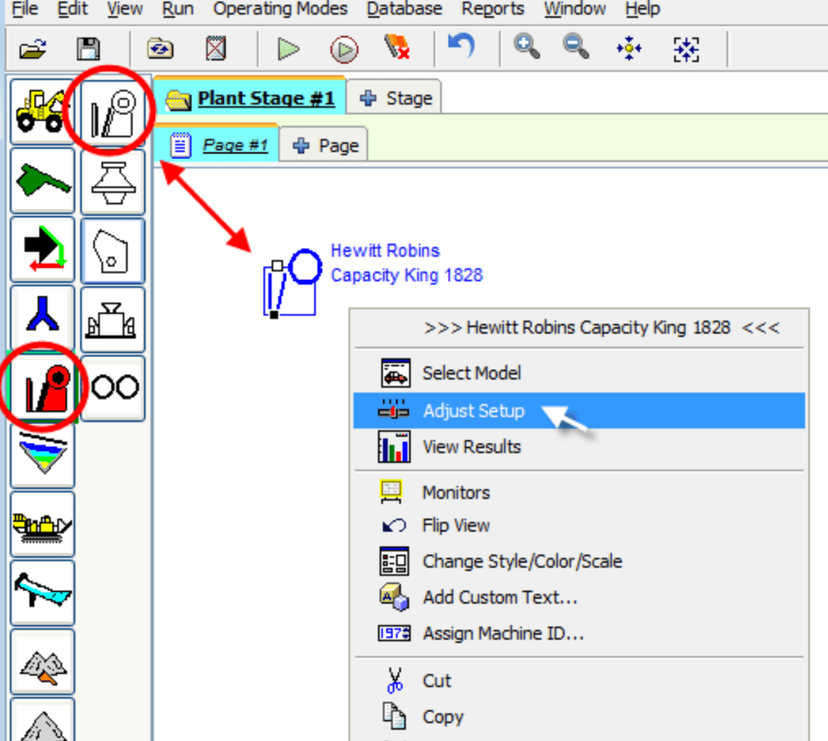
Adjusting Crushers
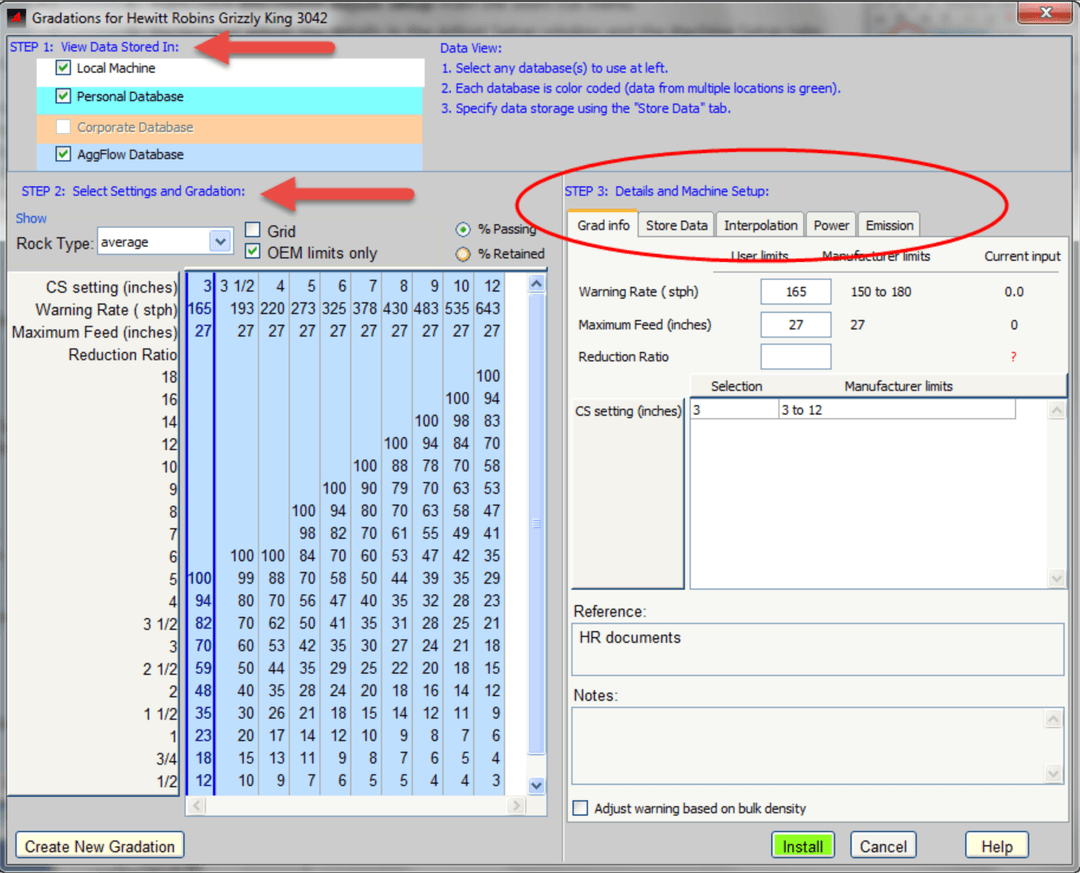
Use the Adjust Setup window to specify the output gradation for the selected crusher, to interpolate new gradations and to track Power, Cost and Emission details.
- Select the
Crusheron the worksheet (it will turn blue). - Right-click and choose
Adjust Setupfrom the short-cut menu. - Review and adjust the details in the Adjust Setup window and the Machine Setup tabs.
- Install the gradation.
Adjust Setup Options
- Show Rock Type: Some crushers provide gradations for more than one rock type. Use this drop-down menu to review them.
- Show Data As: Select between % passing and % retained.
- Show within OEM Limits Only: Displays only CSS and gradations that fall within the manufacturer's defined limits.
- Create New Gradation: Use to create a new crusher gradation.
- Limits:
- User Limits: Users can override manufacturer defined limits for red flag warnings.
- Manufacturer Limits: Shows limits as provided by manufacturer.
- Current Input: Shows the current input into the crusher.
- Store Data tab: Choose where to store this machine data.
- Interpolation tab: Quickly interpolate new gradations by choosing a crusher setting.
- Power and Emission tabs: Store detailed information about the machine.
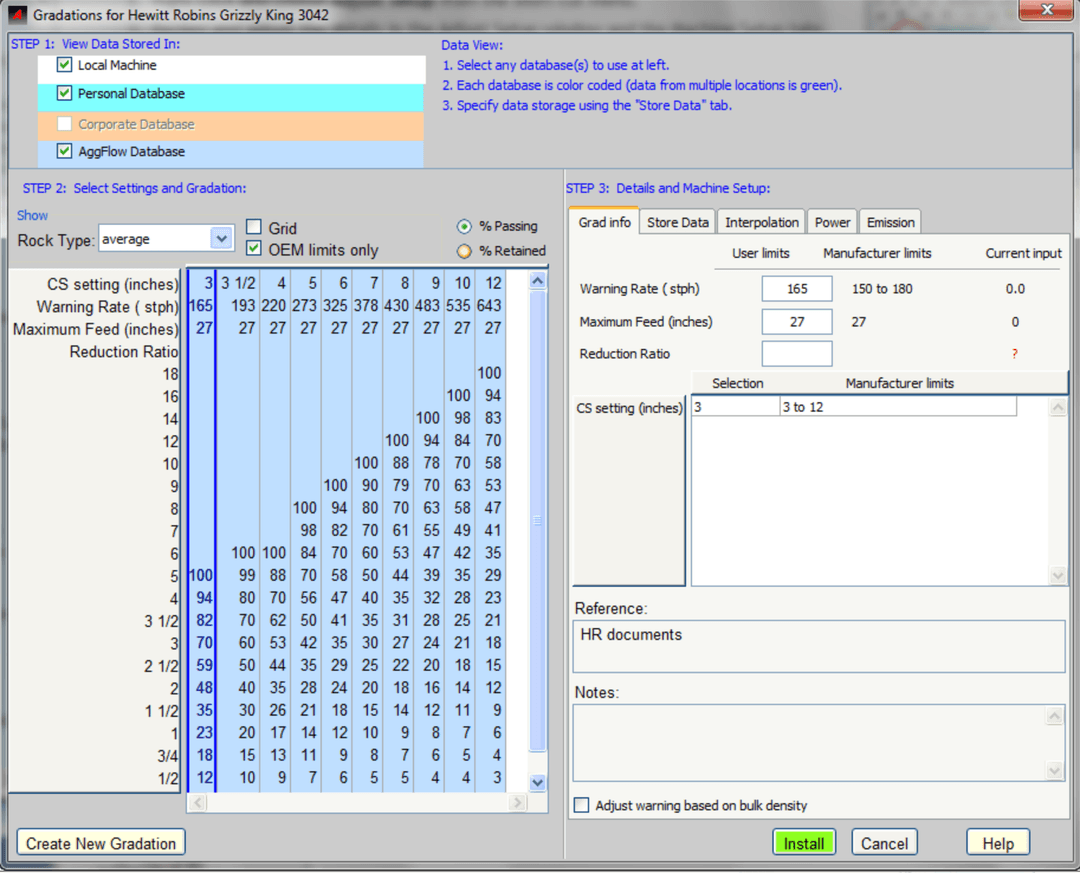
Custom Gradations
There is no limit to the number or type of custom gradations that can be added to the database.
- Specify where to store the data/gradations and whether to share them. Choose between Personal database, Version database, Company database or a combination of these.
- Gradation data supplied with the AggFlow DM program is provided by the equipment manufacturer and cannot be manipulated.
To Enter A Custom Gradation
- Select the
Crushercategory and place a crusher on the worksheet. - Select and install the crusher model.
- Right-click and select
Adjust Setup. - In the Adjust Set-up window select the
Create New Gradationbutton to open the custom gradation window. - If a gradation is needed that is a different setting to the settings available, use
Interpolationto make a gradation at an intermediate closed side setting.
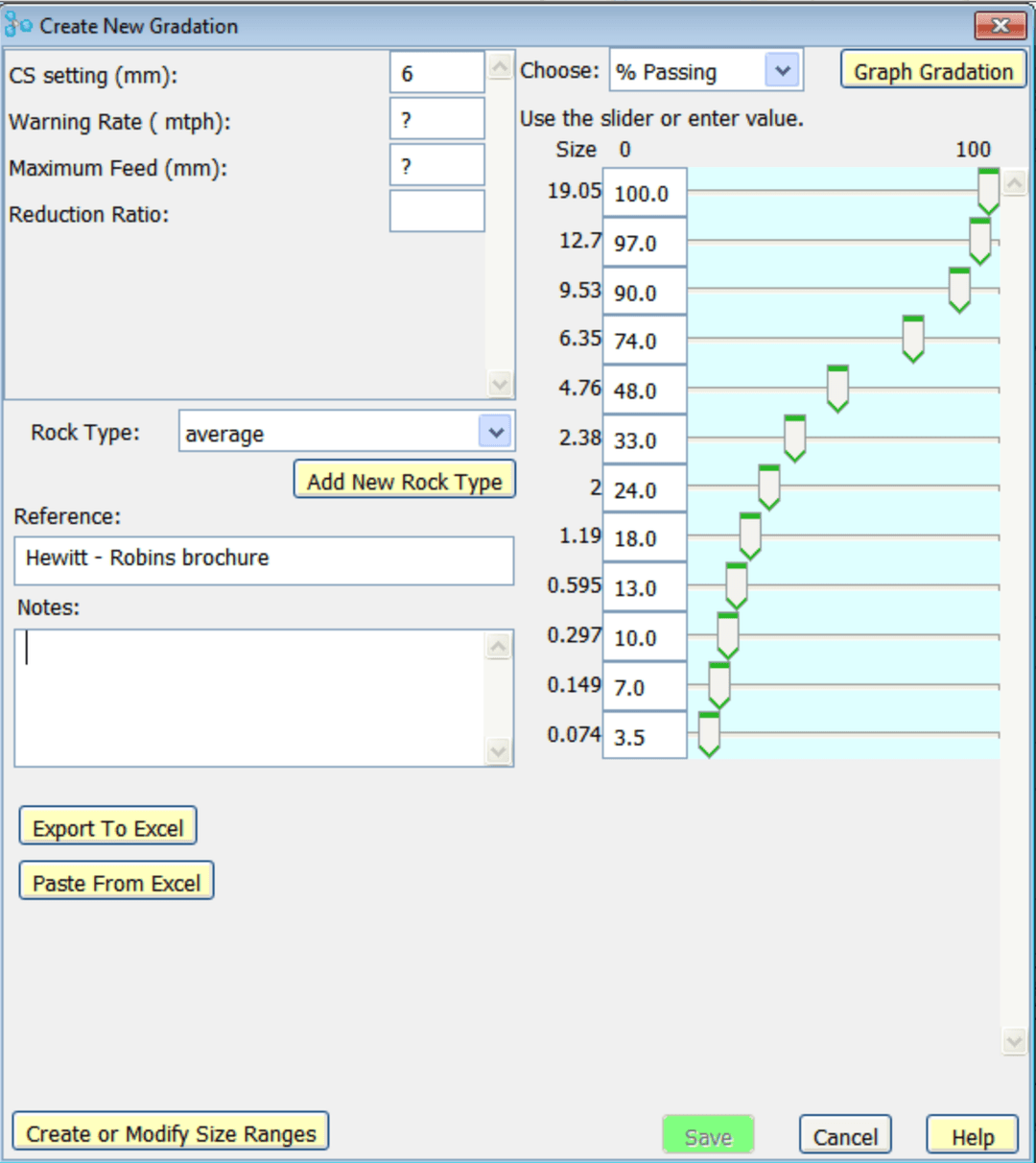
Create the Gradation
-
Enter all the required information including:
- Closed Side Setting (CSS)
- The CSS will determine the resulting gradation that is used in down-stream calculations.
- Warning Rate
- The machine will “Red Flag” when this warning rate is exceeded.
- Maximum Feed
- Reduction Ratio
- Closed Side Setting (CSS)
-
Select the
Rock Typeor Add New Rock Type as needed. -
Add Reference Documentation and or Notes as applicable.
-
Adjust gradation sizes and percentages use the following options:
- Enter the value in the white box or move the slider on the gradation table.
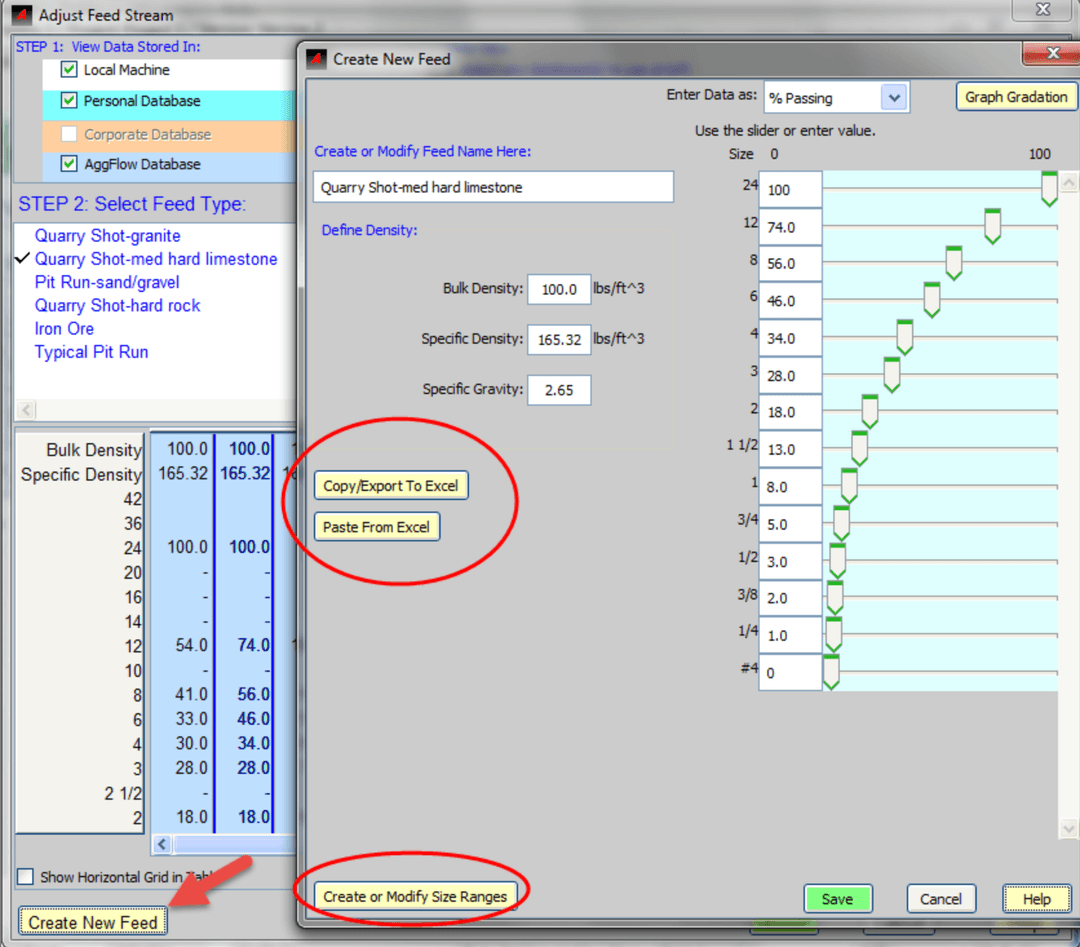
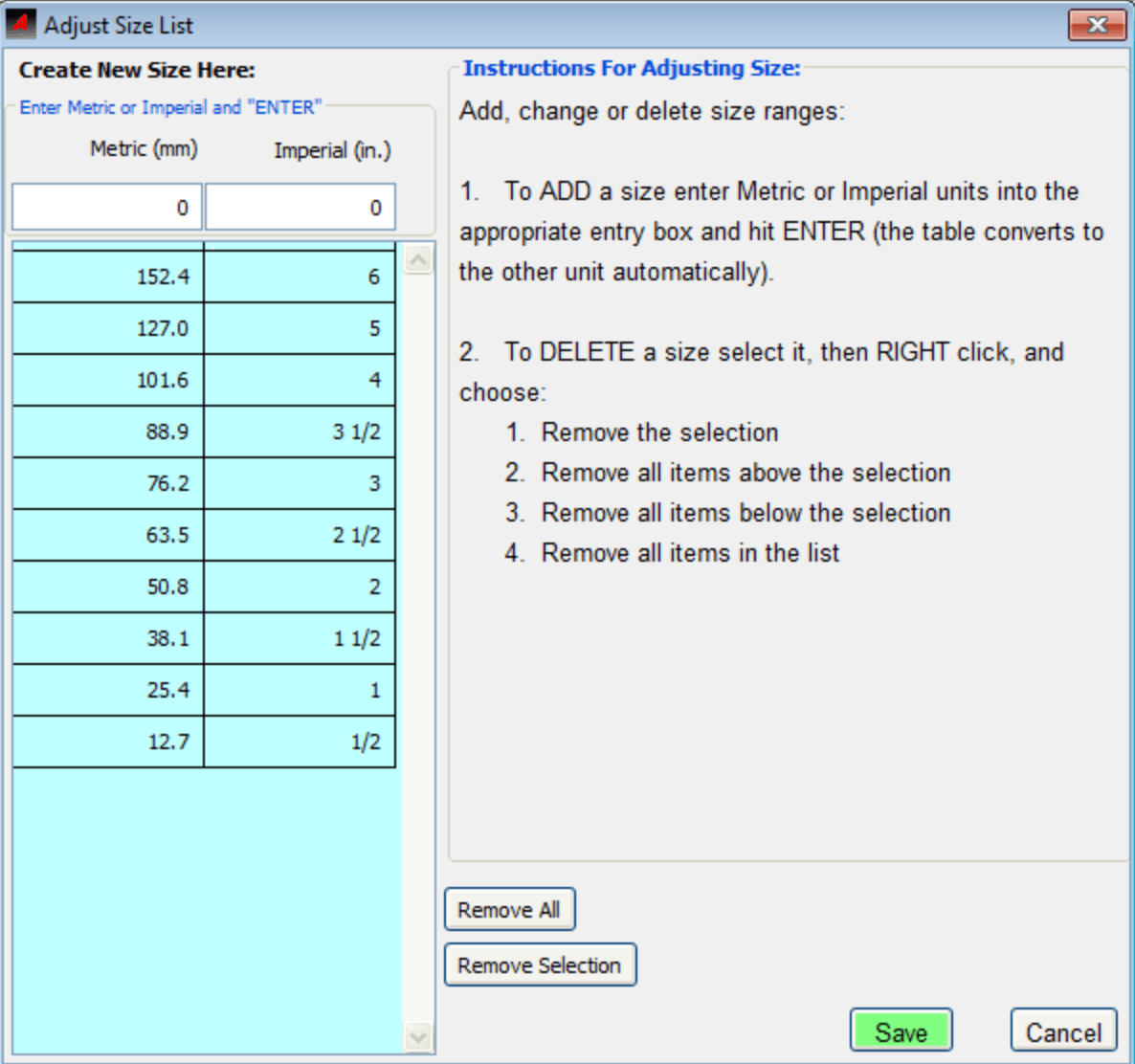
Copy/Export to Excel: From Create New Gradation, the gradation shown can be exported to excel and modified in excelPaste from Excel: Select the size and %passing from the excel table by highlighting and copying the data, including the headings. Go to Create New gradation and select paste from excel.Say Yes to paste the new data into the modified gradation.Create or Modify Size Ranges: Used to remove or add additional sizes to the shown gradation. If sizes are added in excel, they will be imported into the new gradation.
Create or Modify Size Ranges
Import and Export Gradations
Export and Import material gradations to/from Start Points and Crushers using Microsoft Excel.
To Import Data
- Select and Copy the data from an Excel spreadsheet to import.
- Select a Start Point item or a crusher (it will turn blue).
- Right-click and select
Adjust Feed Stream(start points) orAdjust Setup(crushers) to open the adjustment window. - Choose the
Create New Feed button(start points) orCreate New Gradationbutton (crushers) to open the Create New Gradation window. - Choose
File, thenPaste From Excel. This will paste the data previously copied from Microsoft Excel into the data window. - Verify all sizes are correct and save the data.
To Export Data
- Select a Start Point item or a crusher (it will turn blue).
- Right-click and select
Adjust Feed Stream(start points) orAdjust Setup(crushers) to open the adjustment window. - Select a gradation from the table that will be used to export to Excel.
- Choose the
Create New Feedbutton (for start points) orCreate New Gradationbutton (for crushers) to open the Create New Gradation window. - Choose
File, thenCopy/Export to Excel. This will open Microsoft Excel and place the data in a spreadsheet format.