Screens
"blurb here"
Installing Screens
Select a screen from the AggFlow DM database or select Generic, then choose the screen type and size.
New screen sizes can be added as needed.
- Select
Adjust Size as Neededfrom the model list and AggFlow DM will automatically select a screen size based on the calculated area requirements. - The default efficiency is 95%. The lowest screen efficiency that AggFlow DM allows in calculations is 70%. If the calculation cannot achieve 70% the machine “red flags.”
- AggFlow DM provides several screen area calculation features:
- Immediately see the effects of changing various screen parameters.
- Perform various types of screen carry-over calculations.
- Try different screen area calculation methods and compare the results.
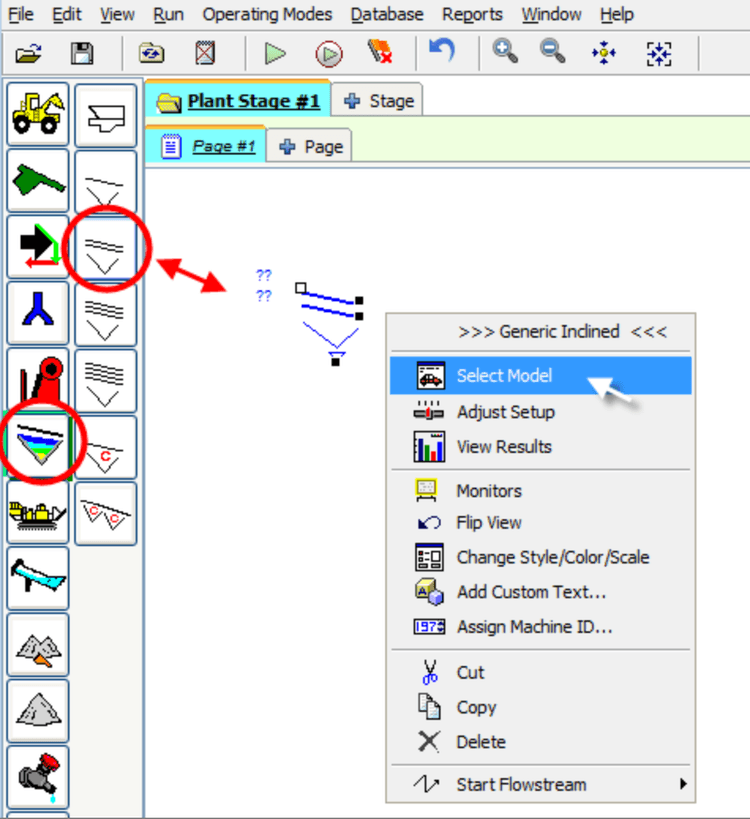
To Install a Screen
- Select the
Screencategory. - Select the type of Screen. Choose from 1-4 decks or custom screens and place it on the worksheet (it will turn blue).
- Right-click and choose
Select Modelfrom the short-cut menur. - Select the desired manufacturer, make and model or choose
Generic, screen type and size. ThenInstall.
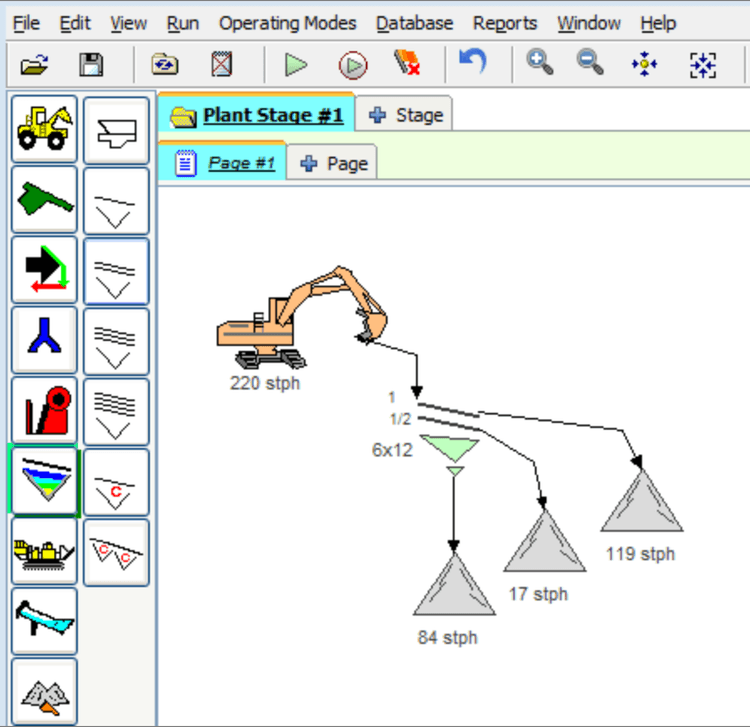
Adjusting Screens
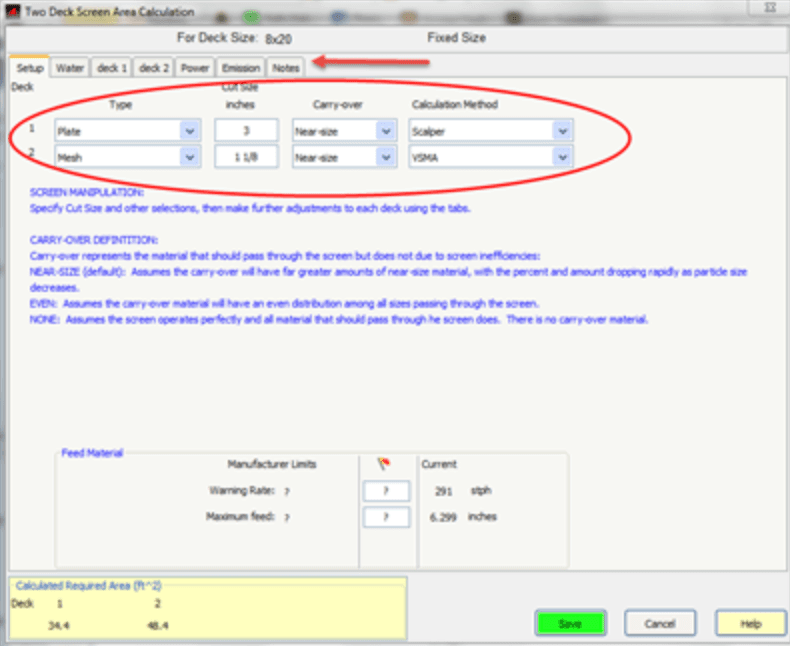
Use the Screen Area Calculation window to define operating parameters and water features.
Screen Area Calculations
-
Screen Type
MESH(default) sizes range from 1/32" to 4".PLATEsizes range from 2”-to-10”BARsizes ranges from, 2”-to-10”EMPTY(material falls through the deck)
-
Cut Size
Enter the desired Split Point. AggFlow can accept various forms of data entry such as 1 3/4, #4 or 4M. Decimals must be entered with three places such as 0.9. Screens perform depending on how they are operated and often the cut size will differ from the actual screen opening size.
-
Screen Carry-Over Calculations:
Select the screen carry-over that most accurately models the plant operation. “Carry-over” represents the material that should pass through the screen but does not due to screen inefficiencies.
Near-size(default) assumes the carry-over will have far greater amounts of near-size material, with the percent and amount dropping rapidly as particle size decreases.Evenassumes the carry-over material will have an even distribution among all sizes passing through the screen.Noneassumes the screen operates perfectly and all material that should pass through he screen does. There is no carry-over material.
-
Calculation Method
AggFlow provides several different calculation methods. When a change is made to any value in the Screen Area Calculation window AggFlow automatically recalculates the required screen size.
VSMAmethod (default). VSMA is the industry standard method for screen calculations.CedarapidsMethod. Uses the calculation developed by screen manufacturer Cedarapids.Deistermethod. Uses the calculation developed by screen manufacturer Deister.Kleeman. Uses calculation developed by KleemanJaques. Uses calculation developed by Jaques- High Frequency and other custom screens use calculations provided by the manufacturer. Custom rate of travel, open area, and custom factor will need to be reviewed for each deck depending on manufacturer recommendations.
-
Operating Parameter Tabs
Use the available tabs to set specific operating parameters for each deck and to track power and emission factors for the screen.
Create a New Screen Size
New screen sizes can be created to allow for a screen that is not listed in the screen database. New screens can be created as a new generic screen, or they can be saved under a new manufacturer and model in the Screen Database.
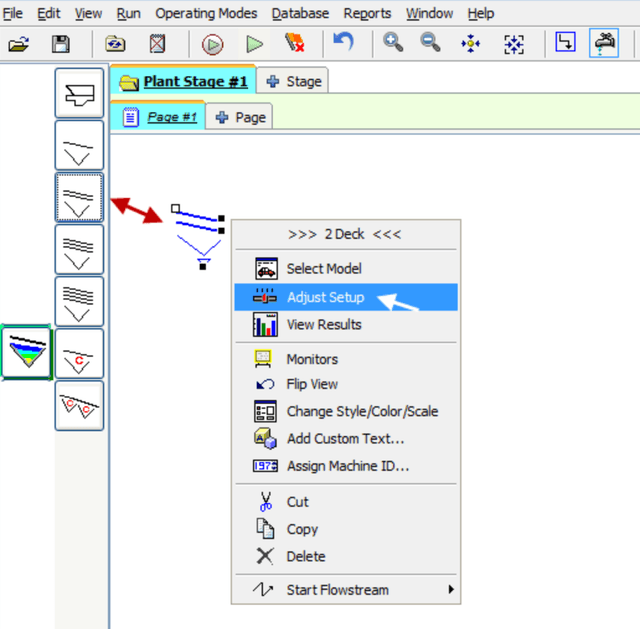
- Install the screen type from the screen equipment selections, right click on the screen and click on
Select Model. - Select the
Create New Screen Sizebutton from the model browser window. - Enter the effective size (width and length). AggFlow DM will use these values to calculate total available screen area.
- Use the Effective Size to make labels or enter a custom label. The label will be displayed when the new screen is in use.
- To save the screen in the Database under a new manufacturer name enter the name and model under Identify Machine.
- Select
Saveto add the new screen size. - To determine where the new screen size will be available in worksheets and projects, select the
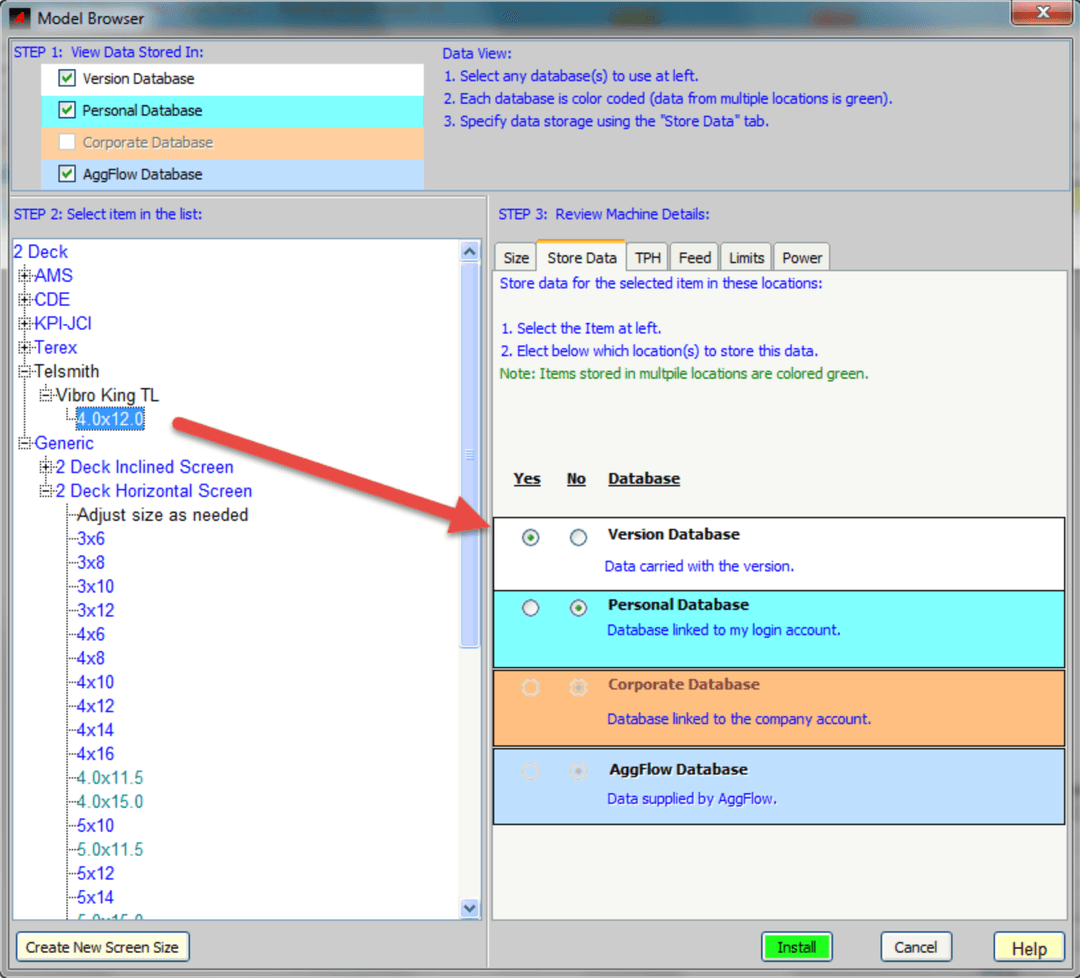
Store Datatab and select the databases to store the screen in. The Default selection is Local Machine. - To delete a screen from the Database, select
Nofor all the databases and this will remove the screen. Screens cannot be removed from the AggFlow DM Database. - Use the
Adjust Setupwindow to set the screen calculation methods factors, efficiency and rate of travel for each deck.
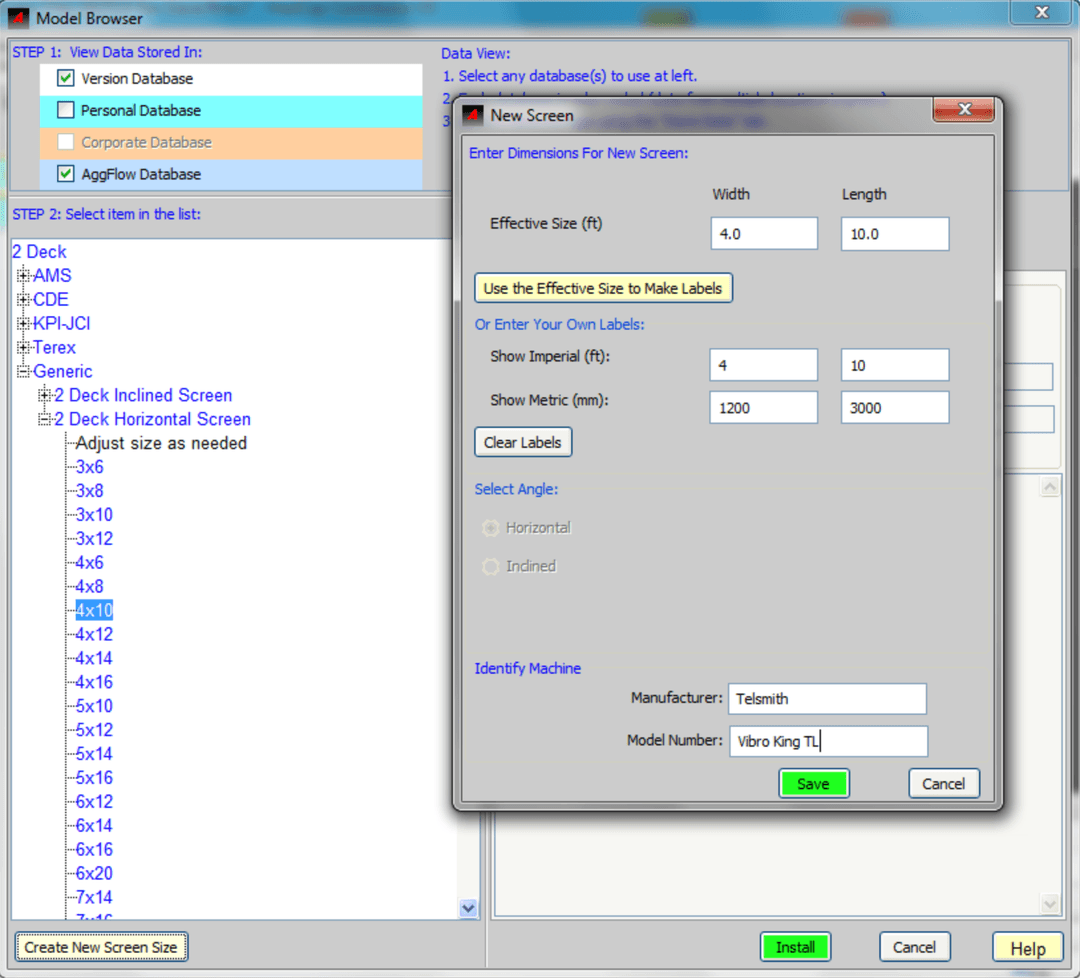
Effective Size represents the total size. The screen efficiency factors account for variations in the actual effective screen area in the calculations.
Screen Operating Parameters
After installing a screen on the worksheet and establishing the set-up. Use the water and deck tabs to set specific operating parameters. Note that screen setup will be in the units that have been selected in user preferences. Imperial is referred to here.
Water Settings
Spray Bars
Turns the spray bars on or off for each deck. AggflowDM only changes the wet screen factor for a screen deck if the spray bar is turned on.
Spray Rate
Specifies the water rate flowing through the spray bars for each deck. Adding water without the spray bars on will not set the screen area calculation factor for wet screening.
Water in Product
Defines how much water is included in the material as it is carried off each screen deck. All of these inputs are different representations of the same calculation; therefore changes to one will update the others.
- (gpm)/(st/h): Represents the flow rate added to each ton of material.
- Solid Weight %: Represents the weight % of solids in the material (slurry).
- Solid Volume %: Represents the volume % of solids in the material (slurry).
Wetbox Rate
Add water to the material before it enters the screen. The water added here will be included in the mass water balance of the plant and the calculation for water included in the product will be performed for all decks even if spray bars are not turned on.
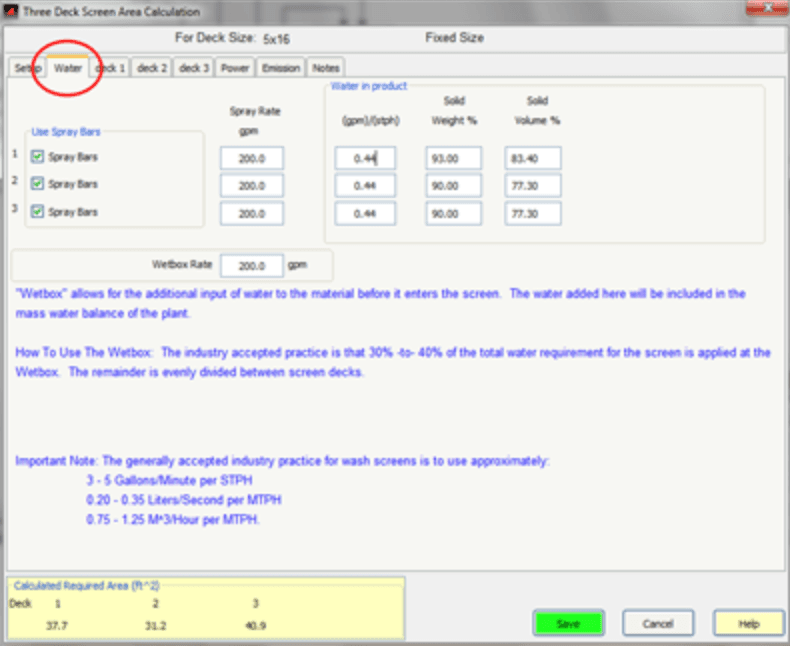
All water not included in these parameters is assumed to fall through the screen and is included in the remaining material.
Deck Settings
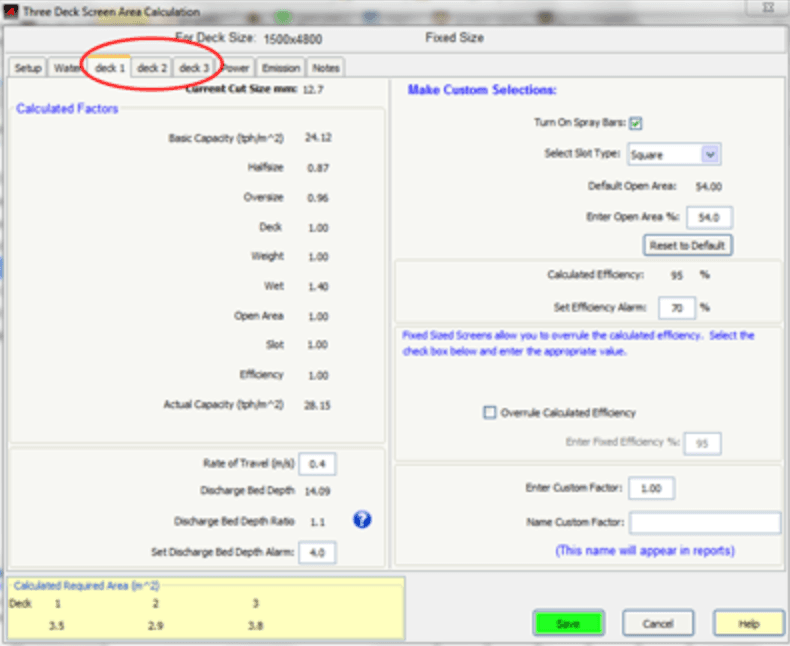
For each deck there will be a deck settings tab. The tab is dependent on the type of media selected (Mesh, Plate, Bars, Empty)
Rate of Travel
Enter the rate of travel (initial setting based on user preferences).
Set Discharge Bed Depth Ratio (DBD)
Set the DBD for the deck (Initial setting based on User Preferences).
Turn Spray Bars on/off
Turns spray bars on or off on the deck. (This changes the wet screening factor)
Select Slot Type
Select between square, short, or long slot.
Enter Open Area
Determines or changes the Open Area factor for the screen.
Set Efficiency Alarm
The screen will “Red Flag” when the calculated efficiency is below the designated efficiency. 70% is the default.
Overrule Calculated Efficiency
AggFlow will calculate using the percentage (70-98% range) entered.
Enter Custom Factor
Enter and name a custom factor for the screen. AggFlow will calculate using the custom factor.
Calculated Required Area
Displays the screen area as calculated using method formulas.
Power and Emission tabs
Store detailed information about the machine.
Custom Screens
To Install and Adjust a Custom Screen
-
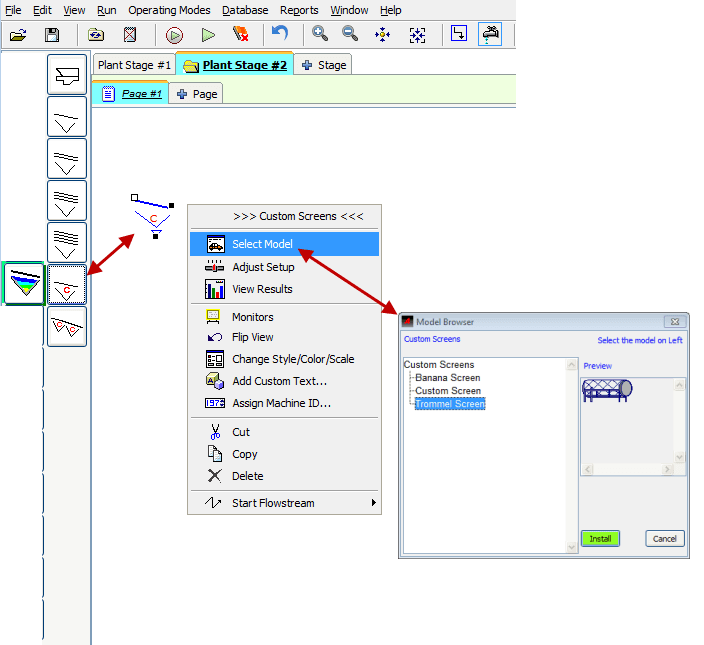
Select
Custom Screensfrom the category list and install the icon on the worksheet. -
Right-click and choose
Select Modelto open the Custom Screen selections window. Custom screens include:- Banana Screens
- Trommel Screens
- Self-defined Screens
-
Select the screen type that is needed.
The generic Custom screen option can be used to model any screen not already included in AggFlow DM. -
Set up the screen using
Adjust Setup.
Custom Multi-Screens
Custom Multi-Screens provide the ability to simulate multiple screen decks within the same machine.
To Install and Adjust a Custom Multi-Screen
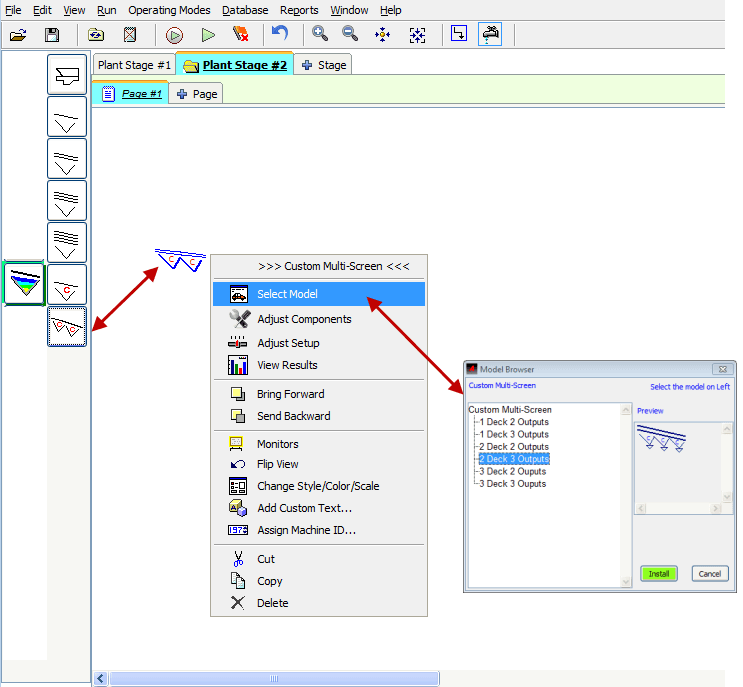
- Select and place the Custom Multi-Screen icon onto the worksheet.
- Right-click and choose
Select Model. - Select the appropriate custom screen option (the worksheet icon will be updated to that machine drawing).
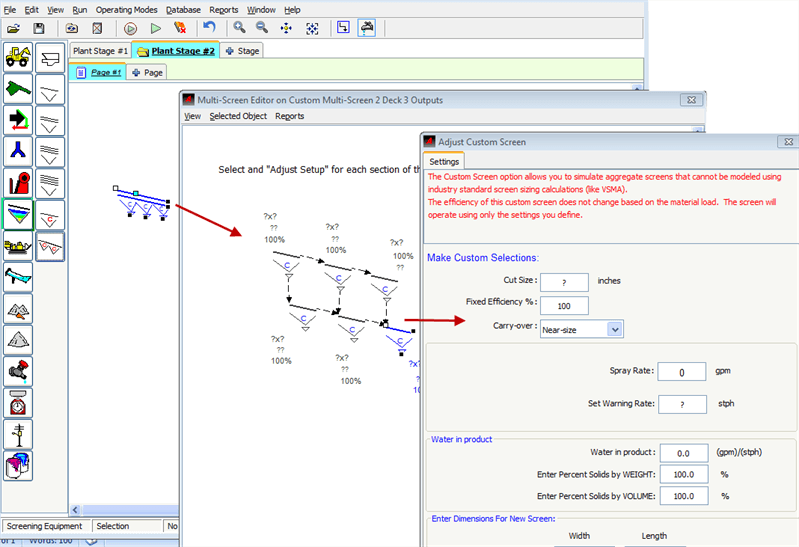
- To open the custom screen machine for adjustment either right click and select
Adjust Components, or double-click on the item or select it and chooseAdjust Setup. This will open the adjustment window. - Adjust each screen item in the component machine to represent the multi-screen machine in the plant.
- Monitors can be show in the adjustment window for each screen item. These monitors will not be shown on the worksheet.
Custom screens do not perform calculations other than calculating the carryover based on the efficiency. Custom screens do not calculate the required area.