Database Items
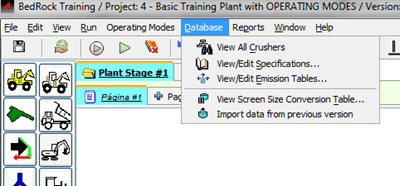
The Database Menu provides quick access to important database items and helpful information
Crusher Database
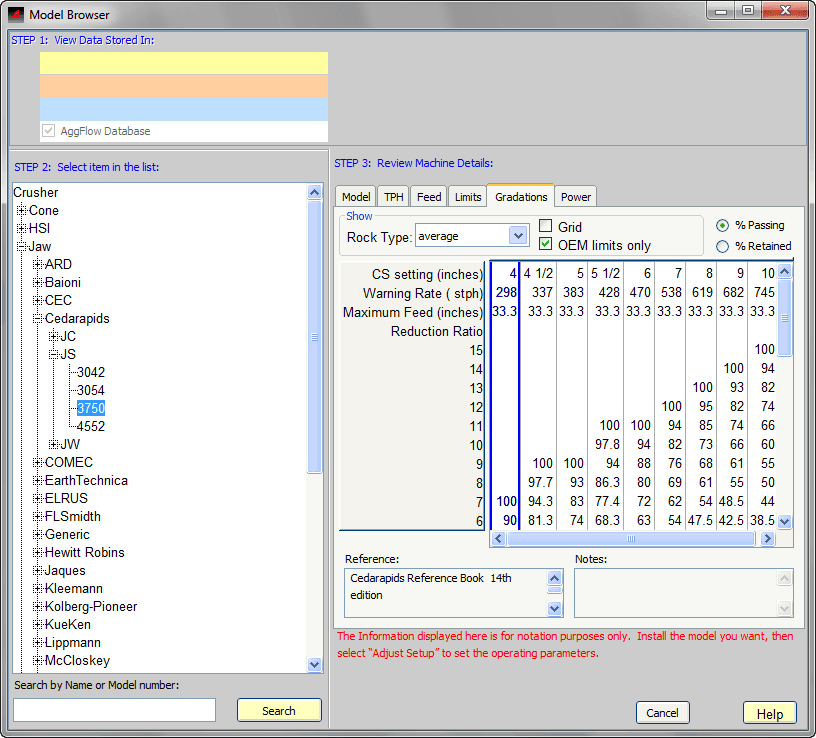
Select Database, then View All Crushers to open and review the entire AggFlow DM crusher database.
Use the tabs when selecting a crusher to see the information for each machine that is stored in the database including gradations, power, settings and limits.
Specification Database
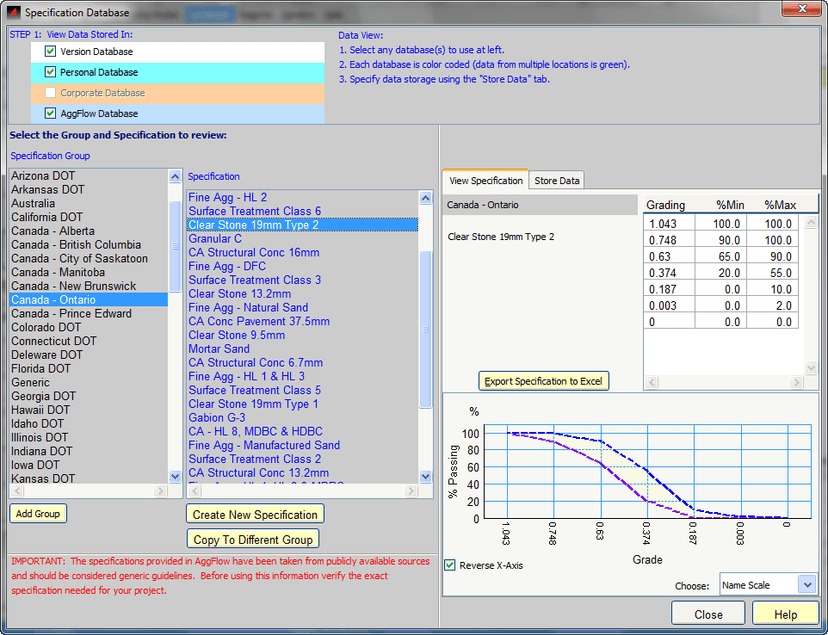
The AggFlow DM database contains standard specifications from all US States and territories, Canada, Russia. Designate specifications for Inventory Items and End Products then determine the optimal setup that meets the required criteria.
Important Notes about Specification Database
- Add or remove specifications from all but the AggFlow DM Database as needed.
- Specifications can only be applied to Inventory items and End Products.
- Modify or remove a user specification at any time.
To Install a Specification
- Select the Inventory Item or End Product item (it will turn blue).
- Right-click and choose Adjust Setup from the short-cut menu.
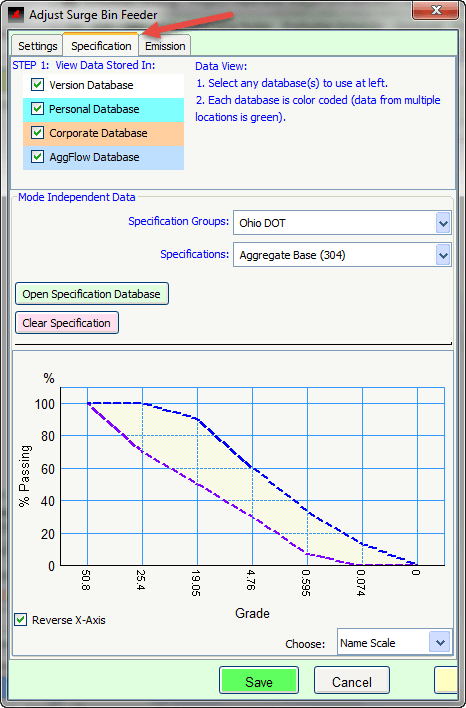
- Select the Specification tab, then:
- Select the data to view.
- Choose the Specification Group and Specification from the drop down menu(s).
- Open the specification database to review or create a new specification.
- Clear the specification.
To Create a Specification
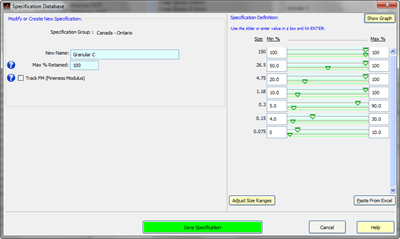
From the specification Database, a new specification can be created by modifying and renaming an existing specification or by creating a specification from the Create New Specification Table.
- Select a group to crate the new specification in or add a group if building a new specification group
- Select a specification to build from, or proceed to creating a new specification by selecting the button.
- If a specification is selected it can be exported to Excel to modify.
- From the Create New Specification window you can:
- Give the specification a new name
- Set the maximum percent retained on a sieve size
- Track the FM
- Use the sliders or enter values for Min Max percent passing
- Paste the values directly from an excel table (Size / % Pass Min / % Pass Max) by copying the values in excel and using the Paste from Excel button in the Specification Database Window.
- Adjust size ranges if creating the specification from the database window
- Then Save the specification to the Database.
- In the Database, the specification location can be defined by using the Store Data Tab.
Emission Database
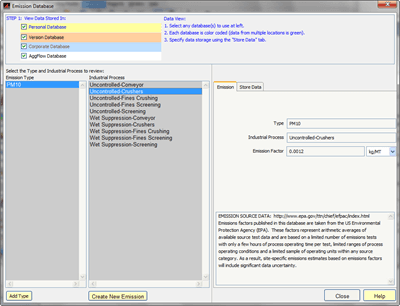
Add and track emission data values for each piece of equipment in the simulation. Also create new emission specifications as necessary.
Important Notes About Emission Data
- It is recommended that the Emissions in AggFlow be checked against those used for your application.
- Emission data values are included in AggFlow DM calculations and are executed each time the worksheet calculations are run.
- Emissions data values are dependent upon user entry. If no emission data is provided for a machine, it is excluded from the emissions calculations.
- Use the
Reports Menuto view a summary table of emission data. - Use the
Store Datatab to select where emissions are stored and to delete emissions from user databases.
Create New Emission
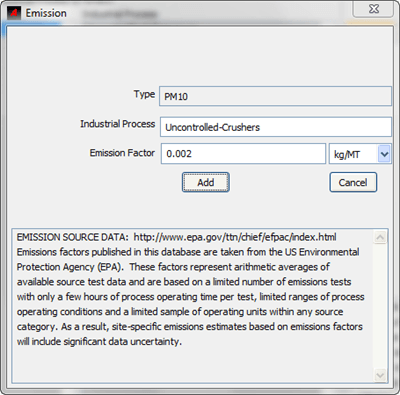
- Click on
Create New Emissionbutton to open the Emission window. - Enter the industrial process and the emission factor.
- Emissions can be changed from metric to Imperial. Changing the units will convert the emission.
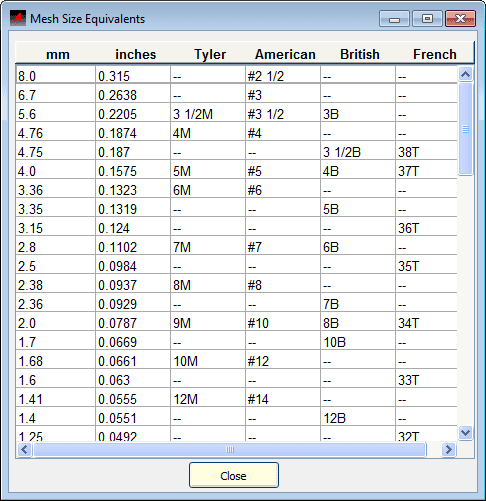
Screen Size Conversion Table
View the Screen Mesh Size conversion table that AggFlow DM uses for units other than metric.