Getting Started
Set User Preferences
User preferences can be set from the control panel or from the project version worksheet. It is important to select and set User Preferences (measurement Units, languages, display Labels, Tolerances, screen calculation methods and other options) to govern how AggFlow will calculate and display information.
To Set User Preferences
From the Control Panel, select
Home>Set User PreferencesFrom the project worksheet,
Select File>Set User PreferencesSelect the individual preference tab (on the right) to review and change the desired settings.
- Save the changes and exit.
Note: Screen calculation methods can be changed for individual screens in the
Adjust Setup screen menu.
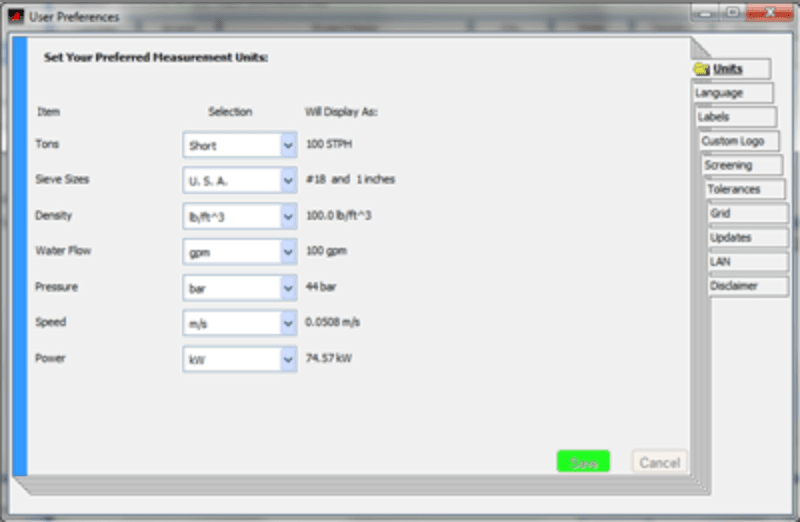
Change user preferences at any time. User preferences do not affect AggFlow calculations - only how the calculation results are displayed.
Using Monitors
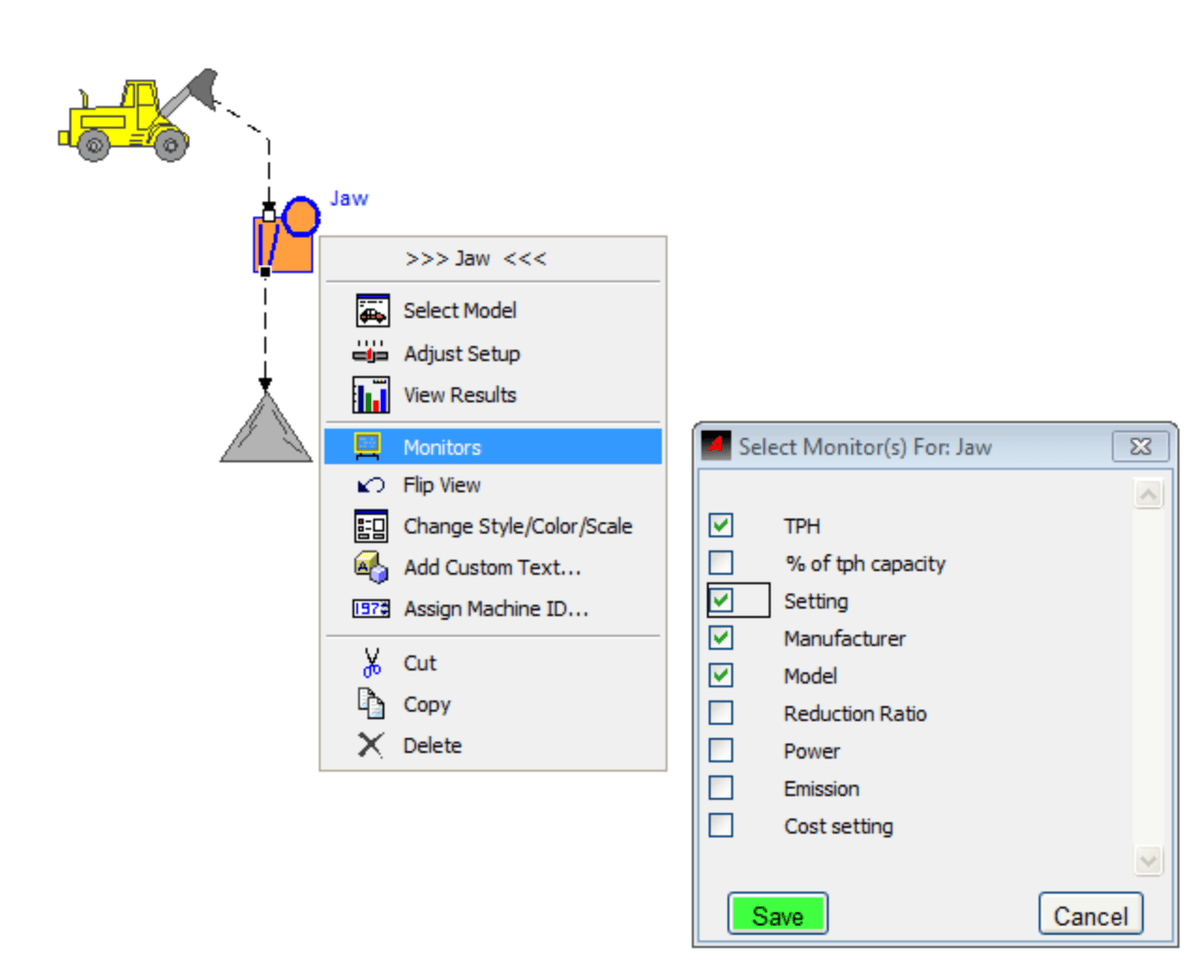
Monitors display what is happening at any point in the simulation. Monitors can be added to any item on the worksheet. Monitor options vary depending on the item selected.
The full list of monitor definitions is available here
To Install Monitors
- Select the equipment item to monitor (it will turn blue).
Right-click and select
Monitorsfrom the short-cut menu.- Choose the Monitors to display.
Once installed, monitors can be easily moved by selecting and dragging them.
Examples of Monitor Use
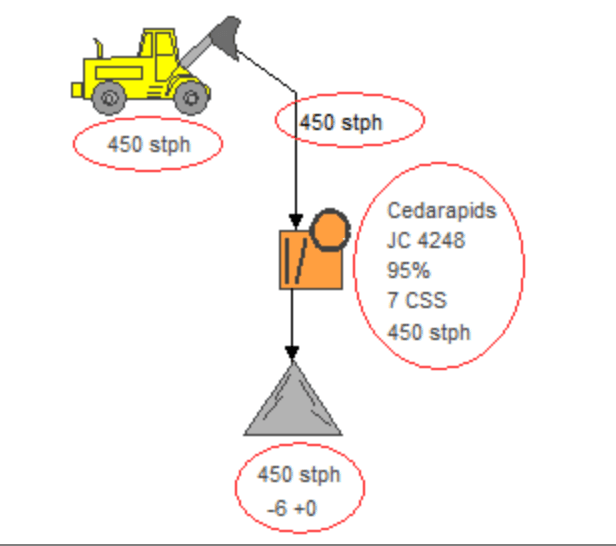
- Monitor the TPH of a start point or flow stream.
Monitor the % capacity, Closed Side Setting (CSS) and TPH of a crusher.
Monitor the TPH and Size of material arriving at an End Product pile.
Using Plant Configuration Advisor
The AggFlow Plant Configuration Advisor provides a summary of alarms, warnings, and missing limits for equipment in the plant. It will appear each time the simulation is “Run” to execute calculations. Use this tool to ensure equipment is accurately configured.
The Plant Configuration Adviser has tabs for each stage - make sure to check each stage for Alarms, Warnings or Missing Limits.
Select the Alarms, Warnings or Missing Limits tab, then select the equipment listed to see the explanation.
The Plant Configuration Advisor can also be opened by selecting the Menu item Run and Open Configuration Advisor from the drop down list.
3 Levels of Alert - By Stage
Alarms: Occurs if equipment is inoperable or there is serious doubt that current calculation results are accurate because of inadequate information. In AggFlow this is known as a “Red Flag” and requires thorough review.
Warnings: Indicates that a problem may exist and you should review it. The equipment is not highlighted on the worksheet and the calculations will complete.
Missing Limits: Indicates equipment is missing operating limits data. If an item is missing limit settings, it may exceed its true operational limits in the calculations and cause the simulation to be inaccurate. The equipment is not highlighted on the worksheet and the calculations will complete.
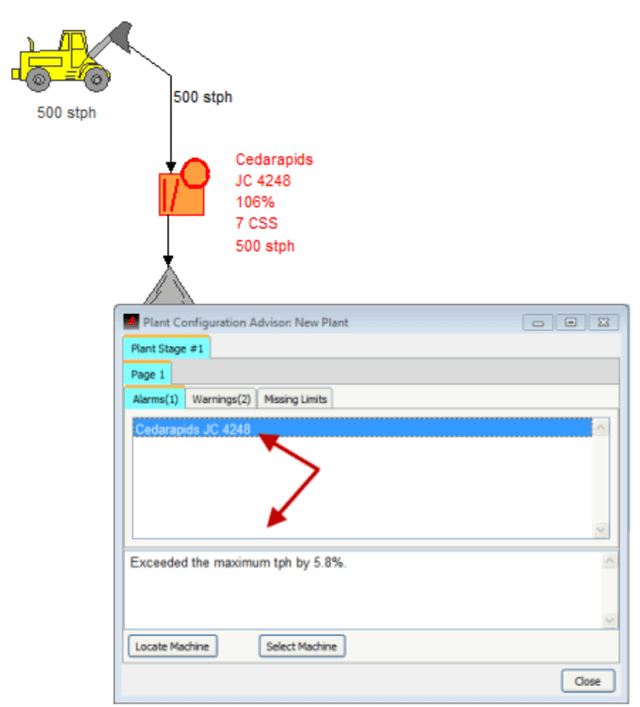
Alarms must be addressed and corrected for the calculations to run properly. Warnings and Missing Limits may be addressed or ignored as desired.
Use the Select Machine button to go to that specific machine on the
worksheet (it will turn blue). Use the Locate Machine button to highlight
the location of the identified machine on large worksheets (it will blink
every time the button is selected).
Run the Calculation
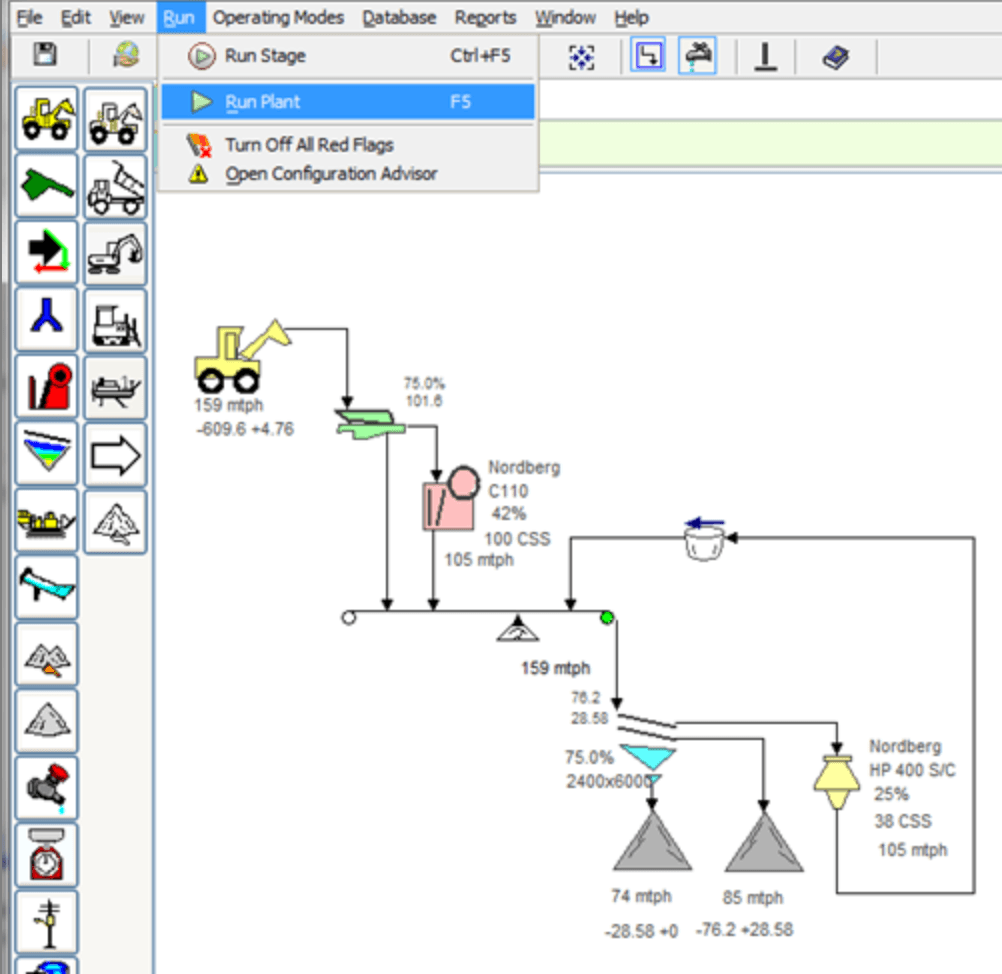
Execute the calculations, turn off red flag warnings and open the Plant Configuration Advisor with the Run menu.
To Run the Calculations
- Establish the plant simulation.
- Set and adjust the equipment settings.
- Select menu item:
Run Select an action:
Run Plant: Executes calculations for the entire plant simulation including all stages and all pages.Run Stage: Run the calculations on the current stage only.Turn Off All Red Flags: Turn off all red flags in the plant for printing purposes.Open Plant Configuration Advisor: Open and review a summary of alarms, warnings, and missing limits for equipment in the plant.
Alternatively, use the Quick Buttons to
Run Plant,Run Stage, orTurn Off All Red Flags.
Maximize Stage Production
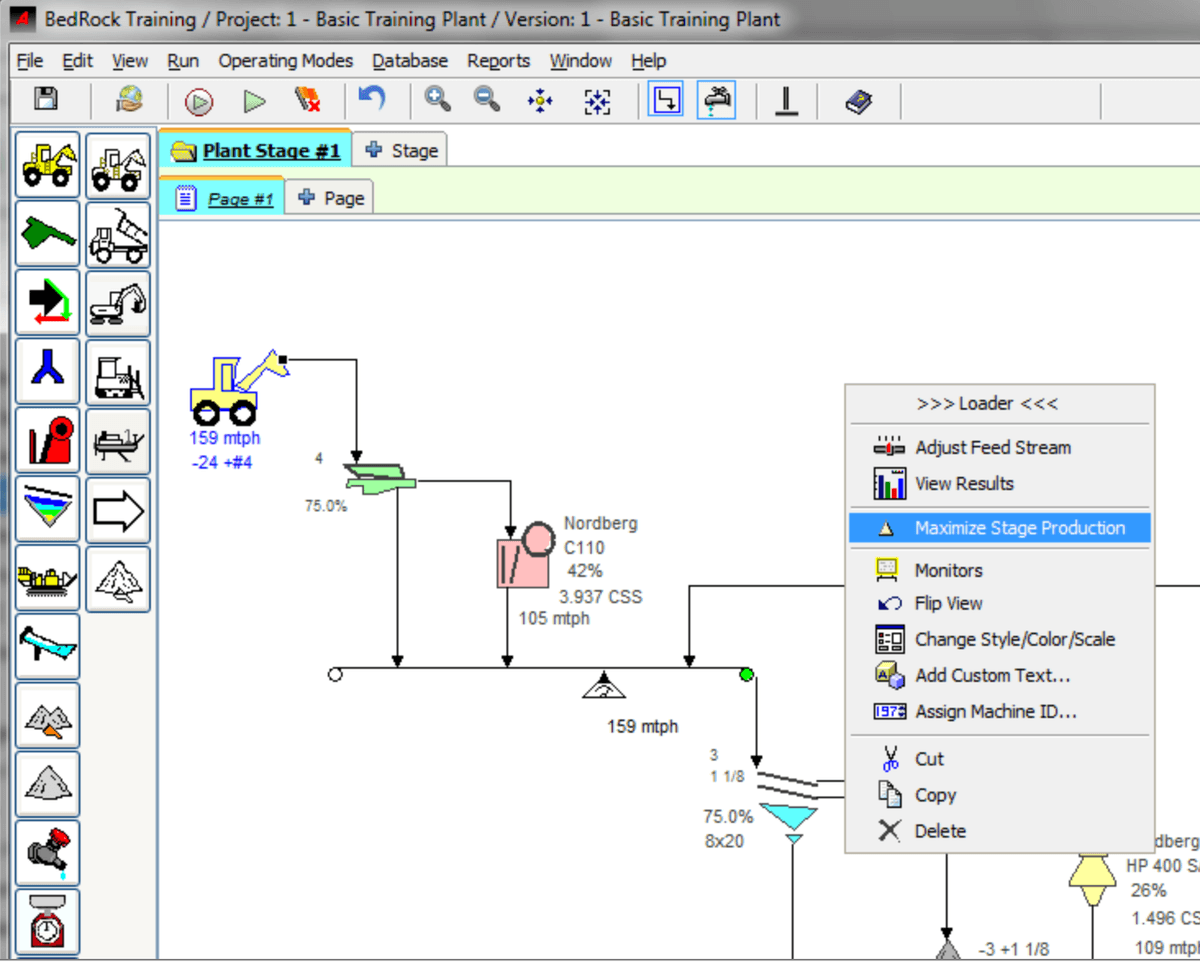
Once the simulation has been run, AggFlow DM can recalculate and maximize production in each stage to the capacity of the crushers. AggFlow will run until the first crusher has reached 100% of it's capacity. Screen efficiency will be calculated based on the rate of material to each screen.
To maximize the stage production, select the feed point in the stage, right click and select Maximize Stage Production.
If the calculations take a long time to run adjust the Tolerance Settings in User Preferences.
The Standard setting calculates solutions to 1
decimal point. (default)
The Loose setting calculates solutions to whole numbers and
will speed up calculation time.
The Tight setting calculates solutions to 2
decimal points and may take more time to complete.
View Results
View Results is one of the most important and powerful tools in AggFlow.
Compare calculated and measured results to analyze plants and identify inefficiencies and bottlenecks in the plant. Also view tables, charts and settings for any item.
To View Results
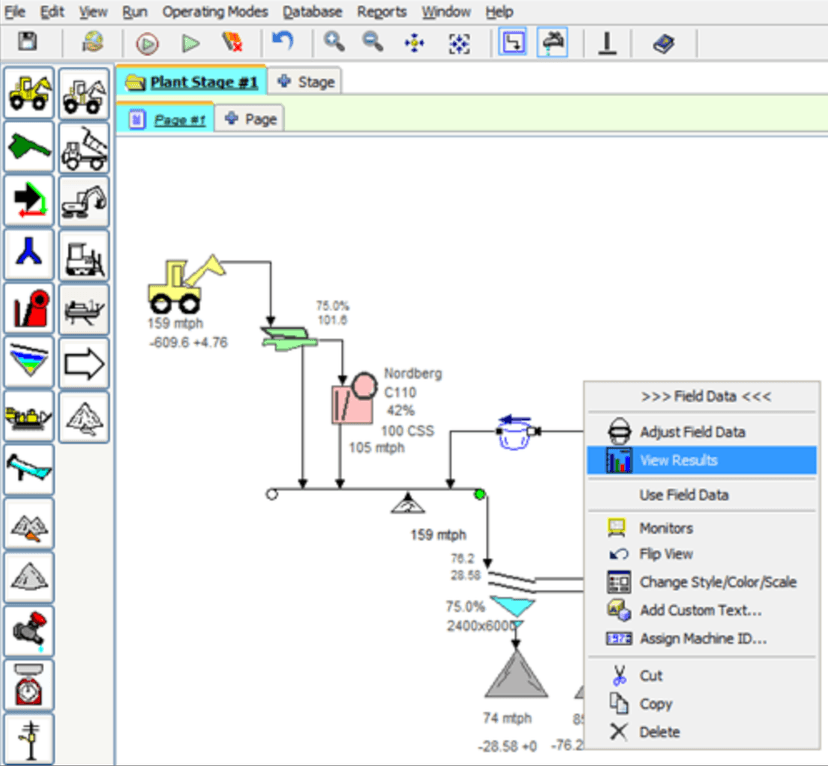
- Select the item (it will turn blue).
- Right click and choose
View Resultsfrom the short-cut menu. - Use the available menu items and options to export data, print results and view or graph capacities and settings for the item.
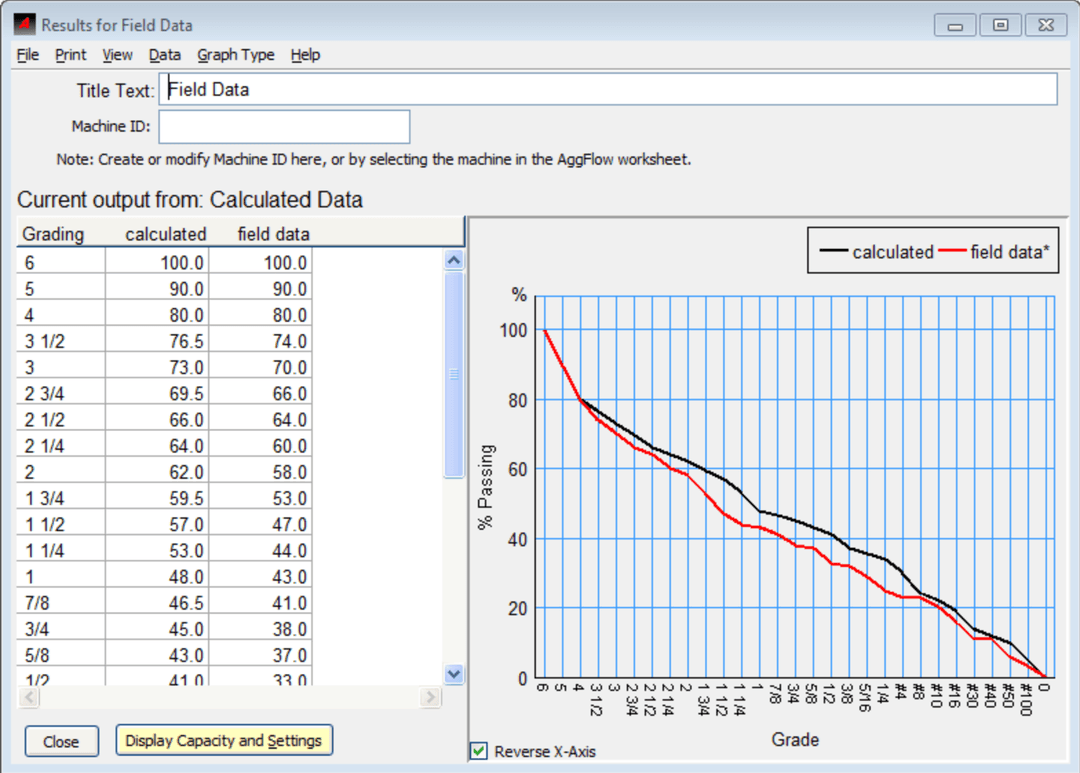
Use the View Results window to establish default settings for graphs and printing.