Measurement Equipment
Measuring equipment consists of Sample Buckets and Belt Scales. Sample buckets can be placed in a flow stream between equipment items to change the simulation from using calculated data to using user defined measured gradations. Belt scales can be added to conveyors to show the combined material flow streams entering a conveyor at a location between the conveyor ends.
Using Field Measurements
Sample Buckets
Sample buckets can be inserted and connected with flow streams, or can be added to inventory items or end products. Use sample buckets to input field measurements into the simulation.

In this mode, the simulation utilizes AggFlow Calculated Gradations downstream in all calculations.

In this mode, the simulation utilizes Field Measurements downstream in all calculations.
Important Notes about Sample Buckets
- Document field measurements.
- Monitor when calculations and measurements differ beyond acceptable levels.
- Compare the calculated results to the field results. In a properly configured simulation variance between calculated results and field measurements indicates inefficiencies or bottlenecks in the operating plant.
- Use field measurements to improve accuracy by instructing the simulation to use them in the calculations. Turn sample buckets on or off in calculations as desired.
To Install and Use Sample Buckets
-
Select the
Measurementscategory. -
Place a Sample Bucket on the worksheet and insert it into a flow stream.
-
Select the Sample Bucket (it will turn blue) then right-click and choose:
-
Adjust Field Datato enter field measurements. -
View Resultsto compare calculated to actual results. -
Use Field DataorUse Calculated Datato utilize that selection in the downstream calculations.
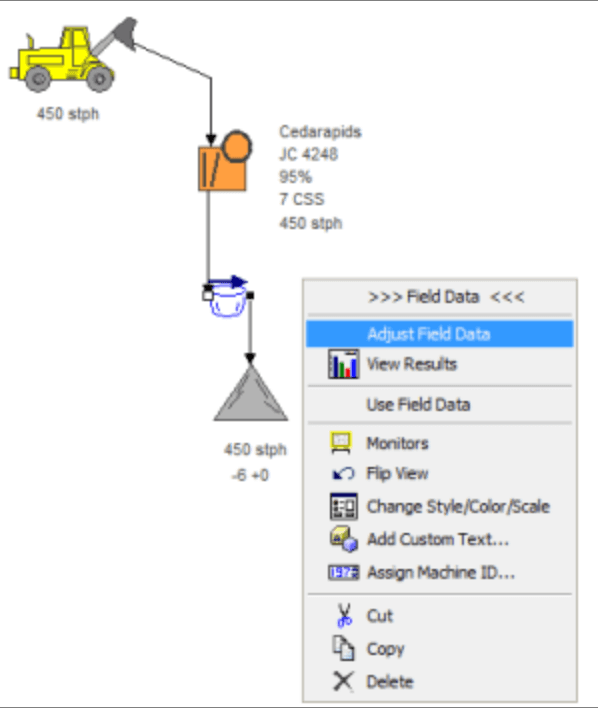
To Adjust Field Data
Select
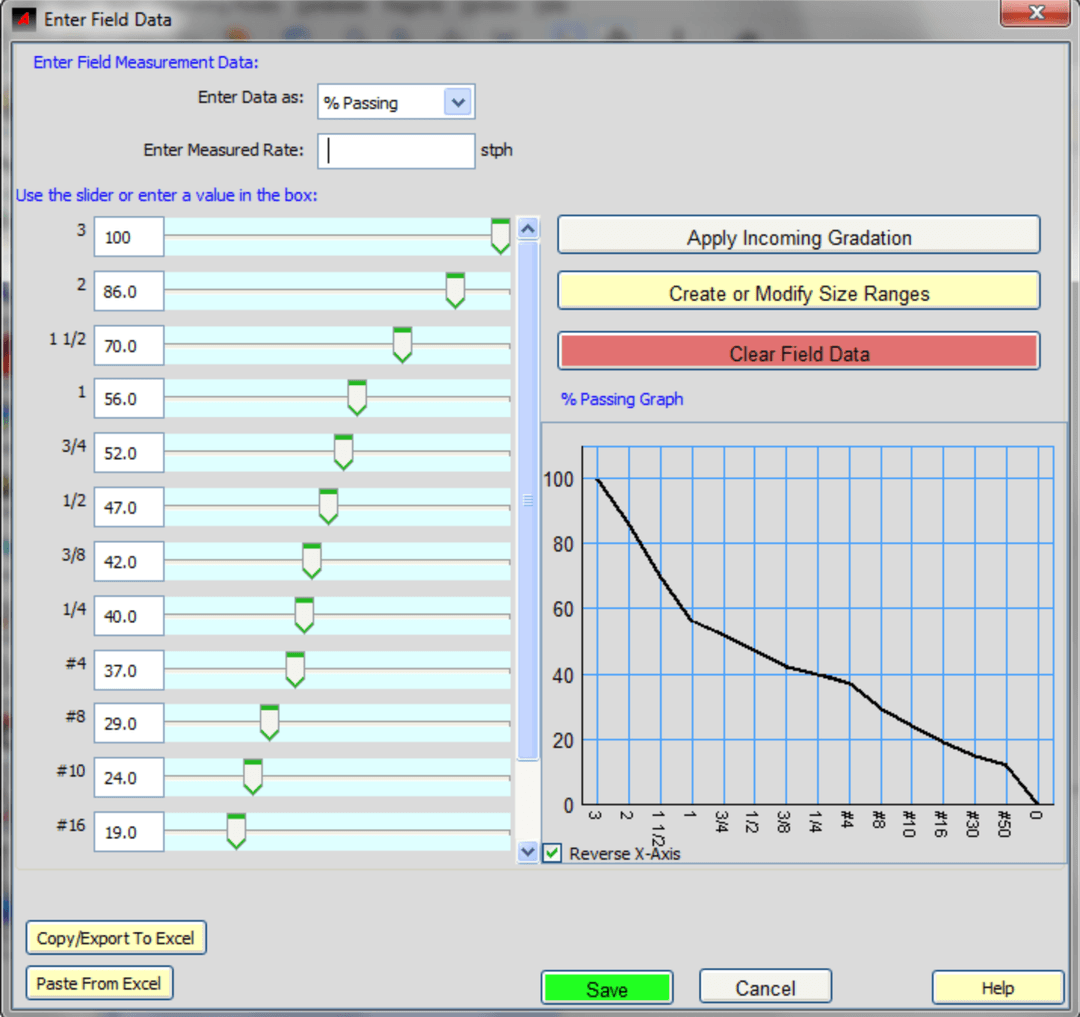
Adjust Field Datawhen right clicking on the sample bucket or by double clicking on the sample bucket.This opens the
Enter Field Datawindow.Choose how to enter and manage Field Data
Enter Measured Rate- measured rates can be entered as a reference and can be shown with monitors, measured rates are not used in the calculationsApply Incoming Gradation- match field gradation to calculated, then the calculated can be adjustedCreate or Modify Size Ranges- Enter a new size range, or delete range from the gradationClear Field Data- Remove all field data from the sample bucketCopy/Export to Excel- sends the shown gradation to Excel where it can be modified and pasted back to AggFlow DMPaste from Excel- A gradation in Excel can be pasted into AggFlow DM as follows:Ensure the Excel data is organized in 2 columns, descending size and % passing (retained)
- Select and Copy the data in Excel
Return to AggFlow and select
Paste From Exceland select yes.
Belt Scales
Belt scales are used to monitor the amount of material passing along the conveyor belt at any point and to enter field data for comparison.
Using Belt Scales as Monitors
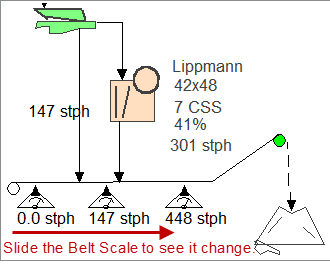
Place a belt scale at any point on a conveyor to see the amount of material at that point.
The Belt Scale monitor is a “live” calculation and slidingit along the conveyor will automatically update the calculation.
To insert belt scales on a worksheet
- Select the conveyor (it will turn blue).
- Right-click and select
Add Belt Scalefrom the short-cut menu. - Select the belt scale and move it to the desired point on the conveyor.
Add as many belt scales as necessary. Move a belt scale by dragging it along the conveyor.
Using Belt Scales to Enter Field Data
Enter Measured Rate to any belt scale and enter field data. Then compare calculated product flow to actual product flow at that point in the simulation.
To enter field measurements in belt scales
- Select the Belt Scale (it will turn blue).
- Right-click and select
Enter Measured Ratefrom the short-cut menu and enter your field measurements - Use Monitors to show field measurements.
Belt Scale Measurement values are relative to the specific operating mode that is being used. Belt scale measurements are saved in each mode and change from one mode to another.